Last Updated on 13.07.2025 by DriverNew
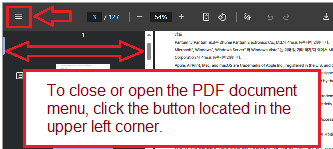 User Manual (PDF document) for Pantum M6200 Series, Pantum M6500 Series, Pantum M6550 Series, and Pantum M6600 Series Printers.
User Guide
Installation and Use Guide for Pantum M6200, M6500, M6550, and M6600 Series Printers
Technical Specifications
The Pantum M6200, M6500, M6550, and M6600 series printers are multifunction monochrome laser printers designed for home and office use. These models support printing, copying, scanning, and, in certain variants, faxing. They deliver print speeds of up to 22 pages per minute and a print resolution of up to 1200 × 1200 dpi. The printers are equipped with USB, wired network, and wireless (Wi-Fi) connectivity options. Each model includes a 150-sheet input tray, a 100-sheet output tray, and supports a variety of media types and sizes. The automatic document feeder can hold up to 35 pages, and the supported operating systems include Windows and macOS.
Installing the Printer Driver on Windows and macOS
To install the printer using a USB connection, connect the printer to the computer with the USB cable and power on both devices. Insert the installation CD or download the driver from the official Pantum website. Run the installation program and choose the “USB” connection option. Follow the on-screen instructions to complete the installation and print a test page.
For Wi-Fi installation, press the Wi-Fi button on the printer to enable wireless mode. Use the Pantum installation software and select the “Wi-Fi” installation option. Enter the SSID and password of the wireless network when prompted. Complete the setup and confirm by printing a test page.
For wired network installation, connect the printer to the network using an Ethernet cable. The printer will automatically obtain an IP address via DHCP. Use the installation software, choose the “Wired Network” option, and follow the steps to detect and install the printer on your computer.
Printing from Cell Phones and Tablets
Mobile printing is supported through the Pantum app, AirPrint for iOS, and Mopria for Android. To use the Pantum app, download it from the appropriate app store. Connect the mobile device to the same network as the printer or directly to the printer’s Wi-Fi. Open the app, select the printer, choose the document or image, and start printing. For AirPrint and Mopria, select the print option within the mobile device’s document or image viewer and choose the Pantum printer from the list of available printers.
Causes of Poor Print Quality
Poor print quality may occur due to several factors. Low toner levels can result in faded prints. Non-standard or unsuitable paper can affect sharpness and clarity. Dust or dirt on the scanner glass or internal components may cause smudges or streaks. Incorrect print settings, such as low resolution or wrong media type, can also impact output quality. To improve results, replace low toner cartridges, use recommended paper, clean internal parts, and verify print settings.
Reasons a Printer Cartridge May Not Work
A printer cartridge may not function correctly if it is not installed properly. Ensure that the cartridge clicks securely into place and that any protective seals have been removed. Cartridges that are not compatible with the specific printer model may be rejected. If the cartridge has reached the end of its life, it must be replaced. Exposure to direct light can damage the photosensitive drum, and third-party refills may result in recognition errors or poor performance.
Troubleshooting Common Problems
Common printer issues can often be resolved by checking the basics. If the printer does not power on, confirm the power cable is securely connected. If it does not print, ensure the printer is selected as the default printer and that the driver is properly installed. Paper jams should be cleared by carefully removing jammed sheets and resetting the paper in the tray. If the scanner does not work, confirm that the scan drivers are installed and that the connection is active. Error messages such as “No Cartridge” or “Toner Low” usually indicate the need to reseat or replace the cartridge. For all issues, refer to the control panel for guidance and consult the user manual if needed.
Conclusion
The Pantum M6200, M6500, M6550, and M6600 series printers are reliable and efficient devices for everyday printing needs. By following the proper installation procedures and performing routine maintenance, users can maximize the life and performance of their printer. For more detailed support, users can visit the official Pantum website.



Leave a Reply