Last Updated on 12.07.2025 by DriverNew
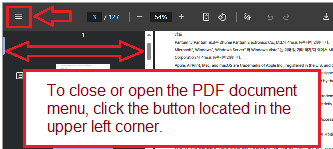 User Manual (PDF document) for Pantum M6700D, M6700DW, M6760DW, M7100DN, M7100DW, M6800FDW, M6860FDW, M6860FDN, M7200FD, M7200FDN, M7200FDW, and other Pantum M6700, Pantum M6800, Pantum M7100, Pantum M7200, Pantum M29, Pantum L2710 Series Printers.
User Manual for Pantum M6761D, M6700D, M6700DN, M6700DW, M6701, M6701D, M6701DN, M6701DW, M6702D, M6702DW Plus, M6702DW, M6702W, M6703, M6703D, M6703DN, M6703DW, M6703W, M6705, M6705D, M6705DN, M6705DW Plus, M6705DW, M6706DN, M6706DW Plus, M6706DW, M6708D, M6708DN, M6708DW, M6709D, M6709DN, M6709DW, M6760, M6760D, M6760DN, M6760DW Plus, M6760DW, M6761DN, M6761DW, M6762D, M6762DW, M6763DN, M6763DW, M6766DW, M6768DW, M6800FDN, M6800FDW, M6802FDN, M6802FDW, M6806, M6806FDN, M6806FDW, M6808FDN, M6808FDW, M6860, M6860FDN, M6860FDW, M6860FDW, M6863, M6863FDN, M6863FDW.
Installation and Use of Pantum M6700, M6800, M7100, M7200, M29, and L2710 Series Printers
Introduction
Pantum’s M6700, M6800, M7100, M7200, M29, and L2710 Series are monochrome multifunction laser printers designed for efficient printing, copying, and scanning. These models are suitable for both home and office environments. This article provides an overview of their specifications, installation methods, mobile printing capabilities, and troubleshooting guidance.
Technical Specifications
These Pantum printer series feature a compact design and multifunction capabilities. They support monochrome printing, copying, and scanning. Most models include automatic duplex printing, an automatic document feeder, and support for wired and wireless networking. Print speeds vary by model, with typical speeds between 30 and 35 pages per minute. Print resolution reaches up to 1200 × 1200 dpi for clear text and sharp images. Supported input includes USB, Wi-Fi, and Ethernet connections. The printers are compatible with Windows and macOS systems. Toner cartridges are available in standard and high-yield capacities.
How to Install the Driver Using Wi-Fi
To install the printer driver over Wi-Fi, first power on the printer and ensure it is Wi-Fi capable. Connect your Windows or macOS computer to the same wireless network where you want to install the printer.
Insert the installation CD or download the latest driver package from Pantum’s official website. Launch the installer and select “One-click installation” under the Wi-Fi option. If the printer is not yet connected to Wi-Fi, connect it temporarily to the computer using a USB cable. The installer will help configure the wireless settings. Once the printer is connected to the network, the driver will install and the printer will be ready for wireless printing.
If the printer is already connected to the network, the installer will detect it automatically, and you can proceed with installation without using a USB cable.
How to Install the Driver Using USB
To install the printer using a USB connection, power on both the printer and your computer. Use the included USB cable to connect them. Insert the installation CD or download the driver from the Pantum website.
Run the setup tool and select the USB installation option. Follow the on-screen instructions. On macOS, you will need to enter your system password when prompted. Once the driver installation is complete, print a test page to verify proper setup.
How to Install the Driver Using Wired Network
To install the printer on a wired network, connect the printer to your router using an Ethernet cable. Make sure the computer is connected to the same network.
Insert the installation CD or download the driver. Launch the setup tool and choose “Wired Network” as the connection method. The installer will detect the printer on the network. Follow the instructions to complete the installation. Print a test page to confirm successful setup.
How to Print Using Cell Phone and Tablet
Pantum printers support mobile printing through several platforms. You can use the Pantum App, Mopria Print Service for Android, or AirPrint for iOS.
To use the Pantum App, download it from the App Store or Google Play. Connect your mobile device to the same Wi-Fi network as the printer. Open the app, find your printer, and select the document or image to print.
For Android devices, enable Mopria Print Service and print from any app that supports printing. For iOS devices, open the file, tap the share icon, and choose the print option. Select your Pantum printer and tap print.
Wi-Fi Direct is also available. Enable Wi-Fi Direct on the printer, then connect your mobile device directly to the printer’s network. Use the app or built-in mobile printing tools to send print jobs without needing a router.
Why Print Quality Can Be Poor
Poor print quality can occur for several reasons. Low toner levels may result in faint or uneven prints. Using non-original toner cartridges can lead to smudging or blurred text. Dirty drum units or internal parts may also affect print quality. Additionally, using the wrong paper type, such as paper that is too thick, thin, or damp, can cause misfeeds or faded prints. For best results, use recommended paper types and original Pantum toner supplies.
Why a Printer Cartridge May Not Work
A printer cartridge may not work properly if it is not installed correctly. Always insert the cartridge until it clicks into place. If the printer does not recognize the cartridge, it may be incompatible with the model. Using non-genuine or expired cartridges can also cause issues, including error messages or print failure. It is important to use Pantum-approved toner cartridges to ensure reliable operation.
How to Troubleshoot Common Problems
If the printer is not printing, check the connection status. Ensure the USB cable is secure, or verify the printer and computer are on the same network. Restart both devices if necessary.
Paper jams are a frequent issue. Open the appropriate covers and carefully remove jammed paper. Follow the user manual for specific instructions based on the jam location.
If print jobs do not start, cancel all print jobs, restart the printer and computer, and try again. If the printer displays error codes, refer to the user manual or the Pantum support website for detailed explanations and solutions.
Wi-Fi problems can result from signal interference or unsupported network types. Most Pantum printers support 2.4 GHz networks only. Move the printer closer to the router or use a wired connection if issues persist.
For image defects or streaks, clean the printer’s internal components as instructed in the maintenance section of the manual. Replace the toner or drum unit if cleaning does not resolve the issue.
Conclusion
Pantum M6700, M6800, M7100, M7200, M29, and L2710 Series printers are versatile and efficient devices for everyday document tasks. By following the correct installation steps and maintenance practices, users can enjoy smooth printing performance across various devices and platforms. For further support, consult the user manual or Pantum’s customer service resources.



Leave a Reply