Last Updated on 16.07.2025 by DriverNew
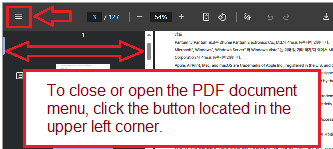 User Manual (PDF document) for Pantum P2200, P2500, P2600, S2000, and other Pantum P2200, Pantum P2500, Pantum P2600, Pantum S2000 series printers.
User Manual for Pantum P2200, P2200NW, P2200W, P2206, P2206NW, P2206W, P2207, P2207W, P2208W, P2212W, P2228, P2500, P2500N, P2500NW, P2500W, P2502, P2502W, P2505, P2505N, P2505w, P2506, P2506W, P2507, P2507N, P2507W, P2508, P2509, P2509NW, P2509W, P2512W, P2518, P2518NW, P2518W, P2595NW, P2600, P2600N, P2600NW, S2000
Pantum P2200, P2500, P2600, and S2000 Series Printers: Installation, Usage, and Troubleshooting Guide
Overview of Technical Specifications
The Pantum P2200, P2500, P2600, and S2000 Series printers are monochrome laser printers designed for personal and small office use. They offer compact design, efficient performance, and easy setup. All models support standard paper sizes and provide fast printing speeds suitable for everyday needs.
The Pantum P2200 and P2500 Series print at speeds up to 22 and 23 pages per minute respectively, while the P2600 and S2000 Series can print up to 26 pages per minute. All models use laser printing technology with a resolution up to 1200 × 1200 dpi for sharp and clear output.
Each printer supports USB connectivity, and select models include support for Wi-Fi and wired network connections. The supported media types include plain paper, labels, envelopes, transparencies, and card stock. Paper capacity for the main tray is up to 150 sheets. Standard toner cartridges can print approximately 1,500 to 1,600 pages, and some models support high-yield cartridges up to 2,300 pages.
How to Install the Printer Driver Using Wi-Fi, USB, or Wired Network on Windows and Mac
USB Installation on Windows and Mac
To install the driver via USB, connect the printer to your computer using the included USB cable. Insert the installation CD or download the driver from Pantum’s official website. Run the installer and follow the prompts. Select the USB installation option. Complete the installation and print a test page to confirm success.
Wi-Fi Installation on Windows and Mac
If your printer supports Wi-Fi, you can connect it to your wireless network during setup. Begin by connecting the printer to your computer with a USB cable. Use the installation CD or download the driver. Select the Wi-Fi installation option. Enter the wireless network name and password when prompted. After installation, disconnect the USB cable. Confirm the connection by printing a test page.
For Wi-Fi Direct setup, connect your computer or mobile device directly to the printer’s Wi-Fi network. Then run the installation software and follow the instructions to complete the setup.
Wired Network Installation on Windows and Mac
For models with Ethernet capability, connect the printer to your router using a network cable. Launch the installer and select the wired network option. The software will search for the printer on the network. Select your printer and complete the installation. Print a test page to verify.
How to Print Using a Mobile Phone or Tablet
To print from a mobile phone or tablet, you can use the Pantum mobile app, Mopria Print Service (for Android), or AirPrint (for iOS).
Download the Pantum app from the app store and ensure your mobile device and printer are connected to the same Wi-Fi network. Open the app, add the printer, and select a file to print.
For Android devices, enable Mopria Print Service and select the Pantum printer from the list of available devices. For iOS devices, use AirPrint by selecting “Print” from the share menu, choosing the printer, and tapping “Print.”
Reasons for Poor Print Quality
Poor print quality may occur due to several factors. Low toner levels can result in faded or incomplete prints. Dust or toner buildup inside the printer can cause smudges, streaks, or black spots. Using damp, low-quality, or incompatible paper can reduce print sharpness. Ensure that the correct paper type is selected in the print settings.
If the printout appears skewed or the toner is not properly fused to the page, the fuser unit or paper feed may require cleaning or service. Environmental factors such as humidity and temperature may also affect output quality.
Reasons Why a Printer Cartridge May Not Work
A cartridge may not function correctly for several reasons. If the toner is not genuine or not compatible with your printer model, the printer may not recognize it. If the protective seal has not been fully removed before installation, the toner will not dispense properly.
Incorrect cartridge installation or damage to the toner contacts can also prevent the printer from operating. Always handle the toner with care and store it in a clean, dry place. If the printer displays an error message after inserting a new cartridge, try reinstalling it or replacing it with an original Pantum cartridge.
Troubleshooting Common Printer Problems
If the printer does not respond or fails to print, check all connections, restart the printer and computer, and ensure that the driver is correctly installed. Verify that the correct printer is selected in your print settings.
For paper jams, open the printer covers and gently remove any jammed sheets. Check for small pieces of paper left inside. Make sure the paper type and size match the print job settings.
If the printer is not found on the network, ensure it is connected to the same network as your device. For wireless printers, check the Wi-Fi signal and consider assigning a static IP address to avoid disconnection during sleep mode.
If prints are consistently poor, clean the interior of the printer and replace the toner cartridge if necessary. Refer to the printer’s control panel for error codes or status indicators that may guide you to a specific solution.
For persistent problems, consult the user manual or contact Pantum customer support for further assistance.
This article provides a complete overview for installing, using, and troubleshooting Pantum P2200, P2500, P2600, and S2000 Series printers across various platforms and devices.



Leave a Reply