Last Updated on 14.07.2025 by DriverNew
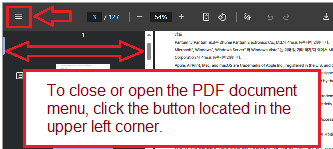 User Manual (PDF document) for Pantum P3010D, P3060DW, P3010DW, P3060, P3300DN, P3300DW, L2300DW, L2350DW, M118DW, M15DW, and other Pantum P3010, Pantum P3060, Pantum P3300 Series Printers.
User Manual for Pantum P3010, P3010D, P3010DN, P3010DW, P3012D, P3012DN, P3012DW, P3016D, P3016DN, P3016DW, P3017D, P3017DN, P3017DW, P3018DW, P3060, P3060D, P3060DN, P3060DW, P3063, P3300, P3300DN, P3300DN, P3300DW, P3300DW, P3301DN, P3302DN, P3302DW, P3304DN, P3304DW, P3305DN, P3305DW, P3306DN, P3306DW, P3308DN, P3308DW, P3309DN, P3309DW, P3325DN, P3370DN, L2300DW, L2350DW, M118DW, M15DW.
How to Install and Use Pantum P3010, P3060, and P3300 Series Printers
The Pantum P3010, P3060, and P3300 Series are monochrome laser printers designed for efficient, high-speed printing in home and office settings. This guide explains the installation, operation, and troubleshooting of these devices to ensure a smooth experience.
Technical Specifications
The Pantum P3010, P3060, and P3300 printers offer fast printing speeds of up to 35 pages per minute, depending on the model. All three models support USB, wired network, and Wi-Fi connectivity. Automatic two-sided printing is included by default. These printers come with an LCD control panel for navigation and support both GDI and PDL print languages. The toner cartridges can yield from 1,000 to 6,000 pages, and the drum unit is rated for up to 12,000 pages. All models support NFC and mute printing mode.
Installing the Driver on Windows and macOS
To install the driver on Windows or macOS, you can use the included CD or download the latest software from the Pantum website.
Installing via Wi-Fi
To install the driver using Wi-Fi, connect the printer to your computer using a USB cable first. After launching the installer, select the Wi-Fi installation option. Follow the prompts to enter your wireless network details. Once the printer connects to Wi-Fi, you may disconnect the USB cable. The installation will finish automatically.
Alternatively, if your printer is already connected to the Wi-Fi network, you can start the driver installation directly. The setup tool will detect the printer on your network and complete the configuration.
You can also use Wi-Fi Direct if there is no wireless router. In this case, connect your computer or mobile device directly to the printer’s Wi-Fi signal and proceed with the installation.
Installing via USB
To install via USB, connect the printer to your computer with the provided USB cable. Power on both devices and run the installation tool. Choose the USB installation option and follow the steps on screen. The installation should complete shortly.
Installing via Wired Network
For wired network installation, connect the printer to your network using an Ethernet cable. Power on the printer and computer. Run the setup software and choose the wired network installation option. The tool will detect the printer and install the driver accordingly.
Printing from a Phone or Tablet
Pantum printers support various mobile printing options for both Android and iOS devices.
Pantum App
You can download the Pantum App from the App Store or Google Play. The app allows you to print documents and images from your mobile device. You can also use NFC to connect your phone to the printer by tapping it on the NFC label.
AirPrint
For iPhone and iPad users, AirPrint is supported. Make sure your printer and mobile device are on the same Wi-Fi network. When printing a document, choose the Pantum printer from the available list.
Mopria Print Service
Android users can install the Mopria Print Service from Google Play. Once installed, the printer should appear automatically in print dialogs of supported applications when connected to the same Wi-Fi network.
Wi-Fi Direct
Wi-Fi Direct enables mobile printing without a router. Connect your phone directly to the printer’s wireless signal and use the Pantum app or the native print function of your device to print documents.
Causes of Poor Print Quality
Poor print quality can result from several issues. Common causes include low toner levels, an aging or damaged drum unit, or the use of non-standard paper types. Humidity, dust, and paper that is too thick or too thin can also affect output quality. Cleaning the printer and using Pantum-recommended consumables can help resolve print quality issues.
Reasons a Cartridge May Not Work
If a toner cartridge is not working, it may be due to incorrect installation, the use of a non-genuine cartridge, or an expired or empty cartridge. The printer’s control panel will display an error if the cartridge is unrecognized or incompatible. Always use genuine Pantum cartridges to avoid issues and preserve warranty coverage.
Troubleshooting Common Problems
When encountering printing issues, a few common solutions can resolve most problems.
If the printer does not print, check that it is turned on and connected properly. Restart the printer and your computer, and ensure the correct printer is selected in the print dialog.
For paper jams, open the appropriate access panel as shown in the user guide and carefully remove the jammed paper. Be sure not to tear the paper during removal.
If the Wi-Fi connection fails, reset the network settings on the printer and reinstall the driver. Ensure your computer and printer are on the same network.
If indicator lights show a problem, refer to the printer’s manual for the meaning of each light status. This can help identify issues such as low toner, paper jams, or network errors.
Maintenance and Recommendations
To keep your Pantum printer in optimal condition, replace toner and drum units as needed and use only recommended supplies. Clean the printer periodically and store paper in a dry, cool environment. Avoid overloading paper trays and remove printed pages promptly to prevent jams.
Regularly update your drivers from the official Pantum website to maintain compatibility with your operating system.
Pantum’s P3010, P3060, and P3300 series printers are reliable and easy to use when properly installed and maintained. By following the setup and troubleshooting steps outlined above, you can ensure high-quality printing from your computer or mobile device. For further support, consult the official Pantum website or user manual.



Leave a Reply