Last Updated on 12.07.2025 by DriverNew
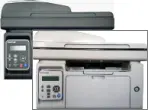 Drivers for printer and scanner: Pantum MS6550NW. Several files are available for download on the official Pantum website for this model, and it is not always clear which one you should choose. This article provides links to verified installation files from the official Pantum website that contain the necessary drivers and software for the full operation of the device and usually do not cause installation problems. The article also includes instructions for the proper installation of the software.
Many users have a question: at what point should they connect the printer to the computer – before installing the drivers or after. Answer: The printer manufacturer Pantum MS6550NW recommends first connecting the printer to your computer and then proceeding with installing drivers. Other printer manufacturers recommend installing the driver first and then connecting the printer to your computer, so that the operating system does not install its own driver when it detects a connected printer. Pantum printers do not have problems with this. Therefore, the Pantum printer can be connected to the computer before installing the drivers.
These are the drivers and software that are on the CD that came with your printer: Pantum MS6550NW.
| Drivers and software | Operating system versions | Download drivers and software |
| Pantum MS6550NW Drivers and software for printer and scanner (Windows) |  Operating systems: Windows 11, Windows 10 (64-bit), Windows 10 (32-bit), Windows 8.1 (64-bit), Windows 8.1 (32-bit), Windows 7 (64-bit), Windows 7 (32-bit), Windows Vista (64-bit), Windows Vista (32-bit), Windows XP Operating systems: Windows 11, Windows 10 (64-bit), Windows 10 (32-bit), Windows 8.1 (64-bit), Windows 8.1 (32-bit), Windows 7 (64-bit), Windows 7 (32-bit), Windows Vista (64-bit), Windows Vista (32-bit), Windows XP |
 Download printer and scanner drivers for Windows operating systems Download printer and scanner drivers for Windows operating systems |
| Pantum MS6550NW Drivers and software for printer and scanner (Mac) |  Operating systems: macOS 15, macOS 14, macOS 13, macOS 12, macOS 11, macOS 10.15, macOS 10.14, macOS 10.13, macOS v10.12, OS X v10.11, OS X v10.10 Operating systems: macOS 15, macOS 14, macOS 13, macOS 12, macOS 11, macOS 10.15, macOS 10.14, macOS 10.13, macOS v10.12, OS X v10.11, OS X v10.10 |
Download printer and scanner drivers for Mac operating systems |
| Pantum MS6550NW Drivers and software for printer and scanner (Linux) |  Operating systems: Linux Ubuntu 22.04, Linux Ubuntu 20.04, Linux Ubuntu 18.04, Linux Ubuntu 16.04 Operating systems: Linux Ubuntu 22.04, Linux Ubuntu 20.04, Linux Ubuntu 18.04, Linux Ubuntu 16.04 |
Download printer and scanner drivers for Linux operating systems |

User Manual (English), PDF document
Download User Manual, ZIP archive
The User’s Guide contains information about setting up and using the device.
Installing drivers and software for printer and scanner: Pantum MS6550NW. Double-click the downloaded .exe file. It will be decompressed and the Setup screen will be displayed. Follow the instructions to install the software and perform the necessary settings.
This video shows how to install drivers for the printer and scanner: Pantum MS6550NW.
 Important information for modern ARM laptop owners!
If your computer or laptop runs on the Windows 11 ARM operating system (for example, based on the latest Qualcomm Snapdragon X Elite, Snapdragon X Plus, or similar processors), you will not be able to install standard x86/x64 drivers from Pantum. Due to the architectural features of the system, a classic launch of the installation file via a USB cable leads to compatibility errors.
Nevertheless, the device can be successfully configured for full operation without using the official software. How to bypass system limitations, start printing, and set up scanning is described in detail in our separate guide. Follow the link to read the material: Step-by-step instructions for installing Pantum on Windows 11 ARM.
How to fix problems that make your printer or scanner not work: Pantum MS6550NW.
If you have installed the drivers for Pantum MS6550NW but the printer or scanner does not work or stopped working after updating your Windows operating system, then follow the steps below to solve the problem. Completely uninstall the drivers and other software that was installed along with those drivers. After that, be sure to restart your computer and install the new drivers. Read more about how to properly install and uninstall printer and scanner drivers: read here.
How to scan documents and photos
After installing the software, a shortcut to use the scanner will be created on your computer’s desktop. Recommended scanning resolution: 300 dpi (suitable for scanning any documents and photos). The higher the resolution, the longer it takes to scan and the larger the file size. It is better to use “JPG” or “PNG” format to scan photos. For scanning documents it is better to use “PDF” format. The quality of scanned documents is good and there is no need to change any other settings of this software.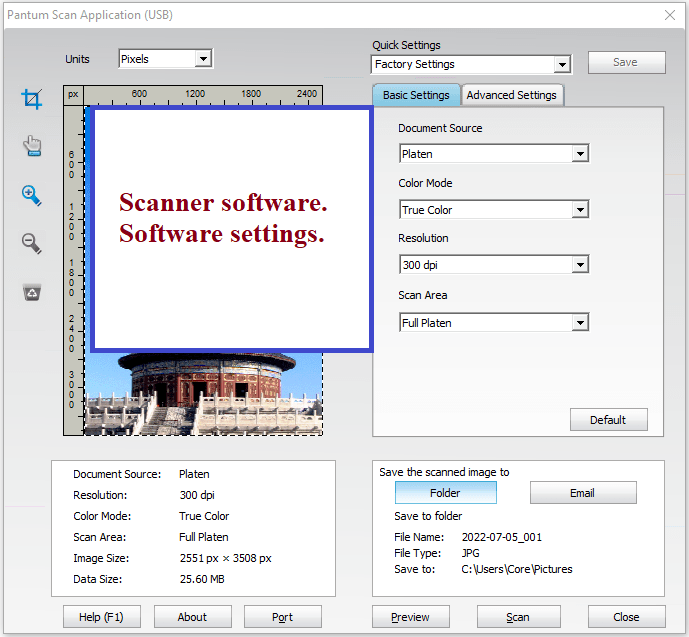
Pantum MS6550NW
You can scan using free Windows tools or the NAPS2 app.
Windows Scan is a free app for Windows 11, Windows 10, and Windows 8.1 that you can download from the Microsoft Store and use to scan documents and pictures.
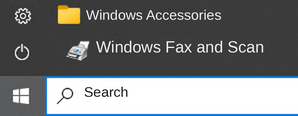
Windows Fax and Scan is a built-in app for Windows 10, 8.1, 8, and 7. To open it, click Start or use Windows Search. In the search box, type: Windows Fax and Scan.
NAPS2 is a free scanning app that lets you save files as PDF, TIFF, JPEG, or PNG and offers more flexible settings.
To learn more about these apps, which one to choose, and how to use them, read this article.
Important: These apps require a scanner driver. If a driver from the manufacturer is available for your model, it is best to install it first. If Windows has already installed a driver automatically and scanning works properly, reinstalling it is usually not necessary.
This is the original software for the printer and scanner: Pantum MS6550NW. Installing the software is quick and easy. Start installing the software. During the installation process, a message will appear on your monitor informing you when to connect the printer to your computer. Therefore, prepare the printer in advance to connect to your computer.
After installing this software, you will be able to print, scan and use all the features of your Pantum MS6550NW printer. You don’t need any other software.



Leave a Reply