Last Updated on 02.04.2024 by DriverNew
 Printer driver for operating systems Windows 11, Windows 10, Windows 8, Windows 8.1, Windows 7 (64-bit / 32-bit)
Printer Model: Canon imageCLASS X LBP1238 (imageCLASS X LBP1238 II)
How to install the printer driver correctly: Do not connect the printer to the computer. Start installing the software first. During the installation process, a message will appear on the monitor informing you when to connect the printer to your computer.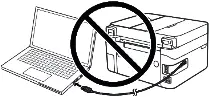 If you see the message ‘Found New Hardware’ on the screen, click Cancel and disconnect the USB cable. Then proceed to install the software. A common mistake when installing a driver is that you first connect the device to your computer using a USB cable and then install the driver. In this case, the operating system detects the connected device and installs its own driver, which may not work correctly or not work at all. However, some other devices may work fine with the driver installed by the operating system. Therefore, if there is a driver specially created for your device, then first start installing this driver and only then connect the device to the computer. If you installed the driver incorrectly, uninstall the driver, restart your computer, and reinstall the software. Be sure to restart your computer after installing and after uninstalling the drivers.

Software for Windows operating systems

Download printer driver for Windows (64-bit)
Download printer driver for Windows (32-bit)
Generic Plus UFR II Printer Driver V2.70
Canon imageCLASS X LBP1238 (imageCLASS X LBP1238 II) Printer Driver
File Version: V2.70. File Size: 33.68 MB
Precaution When Using a USB Connection. Disconnect the USB cable that connects the device and computer before installing the driver. Connect the USB cable after installing the driver.
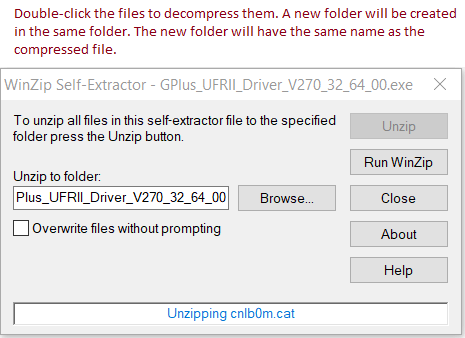
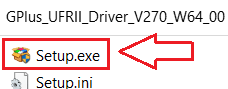
Double-click the files to decompress them. A new folder will be created in the same folder. The new folder will have the same name as the compressed file. Double-click the decompressed Setup.exe file to start installation.

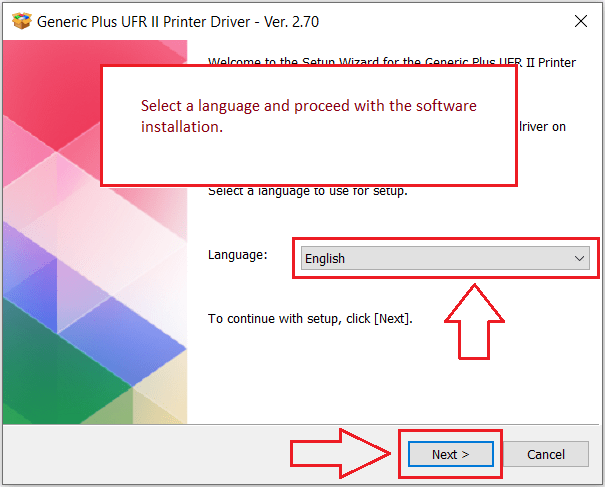
Select a language and proceed with the software installation.
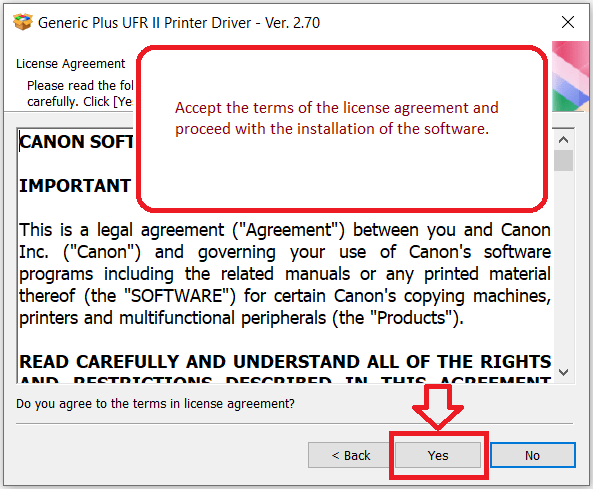
Accept the terms of the license agreement and proceed with the installation of the software.
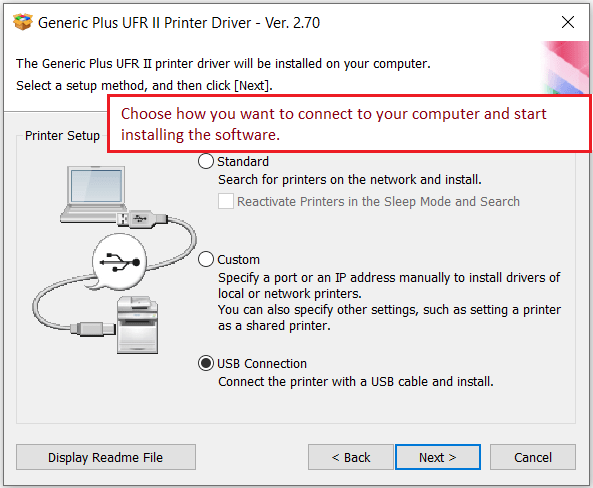
Choose how you want to connect to your computer and start installing the software.
At this point, connect the printer to your computer.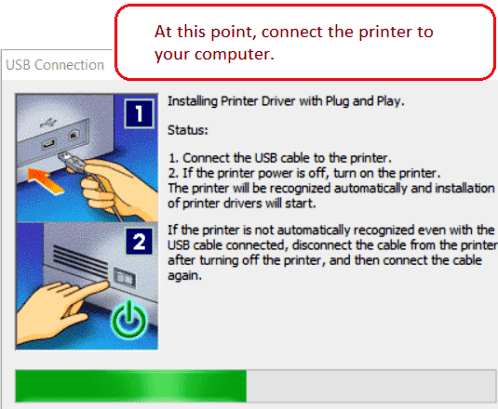 Canon imageCLASS X LBP1238 (imageCLASS X LBP1238 II)
If you change the user privileges of the computer you are using and run the installer, the installation may not be performed correctly. In this case, log in as an Administrator, and then retry the installation. If you install this driver using the installer with default settings, all Generic Plus drivers that are already installed will be updated to their newest versions. To add the newest version of a driver without updating drivers that are already installed, do so according to one of the following procedures. In the screen for checking the [Printer List for Driver Installation] displayed during installation, select and remove the devices that you do not want to update from [Select Printers to Update], and proceed with the installation. Specify an inf file with the add printer function of Windows. If you print a document that has an odd number of pages as a two-sided document from an application, the application may automatically insert a blank page to bring the number of pages up to an even number. When this happens, the blank page inserted by the application is counted up in the same way as a printed page.
Canon imageCLASS X LBP1238 (imageCLASS X LBP1238 II)

Software for MAC operating systems
Printer driver for operating systems: macOS 14 (Sonoma), macOS 13 (Ventura), macOS 12 (Monterey), macOS 11 (Big Sur), macOS 10.15 (Catalina), macOS 10.14 (Mojave), macOS 10.13 (High Sierra), macOS 10.12 (Sierra)
UFR II/UFRII LT Printer Driver and Utilities for Mac V10.19.16 [macOS 10.13.6 – macOS 14.3]
Download printer driver for MAC operating systems
File version: V10.19.16. File Size: 100 MB
Canon imageCLASS X LBP1238 (imageCLASS X LBP1238 II) Printer Driver
File name: mac-UFRII-LIPSLX-v101916-00.dmg
The following instructions show you how to download the compressed files and decompress them. Click the link. The download will start automatically. Files are saved on your computer desktop. Double-click the file to mount the Disk Image. Double-click the mounted Disk Image. Double-click the Installer file in the folder. Installation starts automatically.
Canon imageCLASS X LBP1238 (imageCLASS X LBP1238 II)


Leave a Reply