Last Updated on 05.04.2026 by DriverNew
 Drivers and software for operating systems Windows 11, Windows 10, Windows 8, Windows 8.1, Windows 7, Windows Vista, Windows XP (64-bit / 32-bit)
Printer Model: Samsung SCX-6555N.
Drivers for Samsung SCX-6555N. There are several downloads available on the official website for this model, and it is not always clear which one to choose. This article contains links to proven installation files that contain the necessary drivers and software for full operation of the device and usually do not cause installation problems. The article also contains instructions on how to properly install software for the Samsung SCX-6555N.
How to install the printer driver correctly: Do not connect the printer to the computer. Start installing the software first. During the installation process, a message will appear on the monitor informing you when to connect the printer to your computer.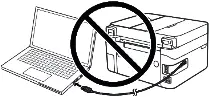 If you see the message ‘Found New Hardware’ on the screen, click Cancel and disconnect the USB cable. Then proceed to install the software. A common mistake when installing a driver is that you first connect the device to your computer using a USB cable and then install the driver. In this case, the operating system detects the connected device and installs its own driver, which may not work correctly or not work at all. However, some other devices may work fine with the driver installed by the operating system. Therefore, if there is a driver specially created for your device, then first start installing this driver and only then connect the device to the computer.
Software for Windows operating systems

Download printer driver for Windows
Download scanner driver for Windows
Software for using the scanner
Download and install the software: “Easy Printer Manager” and “Easy Document Creator”.
Download software “Easy Printer Manager”
Download software “Easy Document Creator”
It is recommended to install these two softwares as they complement each other. This software is included with your device and is intended to enable you to use all the features of this device. If you only need the software to operate the scanner, then download and install ‘Easy Document Creator’.
Here you can learn more about this software (Easy Document Creator)
If you have problems using this software, you can use the easier way to scan documents and photos.
You can scan using free Windows tools or the NAPS2 app.
Windows Scan is a free app for Windows 11, Windows 10, and Windows 8.1 that you can download from the Microsoft Store and use to scan documents and pictures.
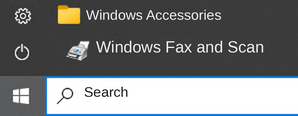
Windows Fax and Scan is a built-in app for Windows 10, 8.1, 8, and 7. To open it, click Start or use Windows Search. In the search box, type: Windows Fax and Scan.
NAPS2 is a free scanning app that lets you save files as PDF, TIFF, JPEG, or PNG and offers more flexible settings.
To learn more about these apps, which one to choose, and how to use them, read this article.
Important: These apps require a scanner driver. If a driver from the manufacturer is available for your model, it is best to install it first. If Windows has already installed a driver automatically and scanning works properly, reinstalling it is usually not necessary.
Printer and Scanner Driver for Samsung SCX-6555N. This is a driver that will provide full functionality for your selected model.


Leave a Reply