Last Updated on 22.06.2025 by DriverNew
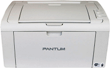 Driver for printer: Pantum P2509W. Several files are available for download on the official Pantum website for this model, and it is not always clear which one you should choose. This article provides links to verified installation files from the official Pantum website that contain the necessary drivers and software for the full operation of the device and usually do not cause installation problems. The article also includes instructions for the proper installation of the software.
When connecting the printer via USB, many users wonder when to plug the printer into the computer — before or after installing the driver. For the Pantum P2509W printer, the following procedure is recommended: first, launch the proprietary Pantum driver installer, accept the license agreement, and wait for the connection method selection screen. After that, turn on the printer and connect it to your computer via USB. Once the installer detects the printer and the USB button becomes active, proceed with the installation. If Windows displays a “Found New Hardware” message after connection, click “Cancel” and complete the installation using the proprietary Pantum installer. Following this sequence helps avoid unnecessary errors and confusion during installation.
These are the drivers and software that are on the CD that came with your printer: Pantum P2509W.
| Drivers and software | Operating system versions | Download drivers and software |
| Pantum P2509W Drivers and software for printer (Windows) |  Operating systems: Windows 11, Windows 10 (64-bit), Windows 10 (32-bit), Windows 8.1 (64-bit), Windows 8.1 (32-bit), Windows 7 (64-bit), Windows 7 (32-bit), Windows Vista (64-bit), Windows Vista (32-bit), Windows XP Operating systems: Windows 11, Windows 10 (64-bit), Windows 10 (32-bit), Windows 8.1 (64-bit), Windows 8.1 (32-bit), Windows 7 (64-bit), Windows 7 (32-bit), Windows Vista (64-bit), Windows Vista (32-bit), Windows XP |
 Download printer driver for Windows operating systems Download printer driver for Windows operating systems |
| Pantum P2509W Drivers and software for printer (Mac) |  Operating systems: macOS 15, macOS 14, macOS 13, macOS 12, macOS 11, macOS 10.15, macOS 10.14, macOS 10.13, macOS v10.12, OS X v10.11, OS X v10.10 Operating systems: macOS 15, macOS 14, macOS 13, macOS 12, macOS 11, macOS 10.15, macOS 10.14, macOS 10.13, macOS v10.12, OS X v10.11, OS X v10.10 |
Download printer driver for Mac operating systems |
| Pantum P2509W Drivers and software for printer (Linux) |  Operating systems: Linux Ubuntu 22.04, Linux Ubuntu 20.04, Linux Ubuntu 18.04, Linux Ubuntu 16.04 Operating systems: Linux Ubuntu 22.04, Linux Ubuntu 20.04, Linux Ubuntu 18.04, Linux Ubuntu 16.04 |
Download printer driver for Linux operating systems |

User Manual (English), PDF document
Download User Manual, ZIP archive
The User’s Guide contains information about setting up and using the device.
Installing drivers and software for the printer: Pantum P2509W. Double-click the downloaded .exe file. It will be decompressed and the Setup screen will be displayed. Follow the instructions to install the software and perform the necessary settings.
This video shows how to install the drivers for the printer: Pantum P2509W.
 Important information for modern ARM laptop owners!
If your computer or laptop runs on the Windows 11 ARM operating system (for example, based on the latest Qualcomm Snapdragon X Elite, Snapdragon X Plus, or similar processors), you will not be able to install standard x86/x64 drivers from Pantum. Due to the architectural features of the system, a classic launch of the installation file via a USB cable leads to compatibility errors.
Nevertheless, the device can be successfully configured for full operation without using the official software. How to bypass system limitations, start printing, and set up scanning is described in detail in our separate guide. Follow the link to read the material: Step-by-step instructions for installing Pantum on Windows 11 ARM.
How to fix problems that are causing your printer not to work: Pantum P2509W.
If you have installed the driver for Pantum P2509W but the printer does not work or stopped working after updating your Windows operating system, then follow the steps below to fix the problem. Uninstall the driver completely. After that, be sure to restart your computer and install the new driver. Learn more about how to properly install or uninstall a printer driver: read here.
This is the original software for the printer: Pantum P2509W. Installing the software is quick and easy. Start installing the software. During the installation process, a message will appear on your monitor informing you when to connect the printer to your computer. Therefore, prepare the printer for connection to your computer in advance.
After installing this software, you will be able to print and use all the features of your Pantum P2509W printer. You don’t need any other software.


The driver installation was successful
Thank you