A4Tech Bloody W90 Max Driver and Software Download

Last Updated on 18.10.2020 by DriverNew

Software for operating systems: Windows 11, Windows 10, Windows 8, Windows 8.1, Windows 7, Windows Vista (64-bit / 32-bit)

Device model: A4Tech Bloody W90 Max

Download driver and software for Windows

Version: V2020.0930

Software Description: Offers unique 4-core system. It incorporates 4 various levels for all game requirements: “Low, High, Ultra, and Extreme.”Suitable for MMORPG, FPS and all genre of games.

Upgrade Tip: For those activated “Bloody 2/3/4/5” versions, user is free to upgrade Bloody to the latest version eternally.
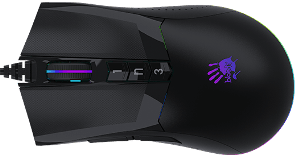
A4Tech Bloody W90 Max Driver and SoftwareDevice specifications: A4Tech Bloody W90 Max
Tracking
Sensor: MAX BC3332-A 10K Sensor
Resolution: 100~10,000 CPI
Frame Speed: 8000 fps
Acceleration: 35 g
Tracking Speed: 250 ips
Response
Report Rate: 125~2000 Hz
Key Response: 1 ms
Durability
Micro-Switch: Over 50 Million Clicks ( Left / Right Button )
Wheel: Over 500,000 Scrolls
Metal X’Glide Armor Boot: Over 300 Kms

Driver DownloadThis is a software that will allow you to use all the functions of your device. The version of this software is located on the CD-ROM that is included with the device.

Additional Information

If you have problems installing drivers or other software for your device (printer, scanner, monitor, keyboard, etc.), please tell us the model of your device and the version of your operating system (for example: Windows 11, Windows 10 64-bit, Windows 8 64-bit, etc.) and we will try to help you. Email us.

install driverHow to install the driver if there is no setup.exe file and how to install the driver using the .INF file. In this case, open the downloaded file that should contain the driver and use the .INF file to install. In this article, we will tell and show you how to install a driver using an .INF file.
Windows Update and manually adding a printerHow to install a driver for an old printer in Windows 10 and Windows 11. Step-by-step instructions for finding a driver through Windows Update and manually adding a printer. This method may help if the official driver fails to install, is unavailable on the manufacturer's website, or the printer stops working after a Windows update.
Scanner softwareIf you can’t find scanner software or don’t know how to use your scanner to scan documents and photos. This problem occurs because some scanners and multifunction devices only have drivers, but do not have dedicated software to control the scanner.
Solving problems with Xerox printers and MFPs on laptops with Windows 11 ARMHow to fix problems with Xerox printers and multifunction devices on Windows 11 ARM laptops. The article explains why standard Windows x64 drivers may not work and how to install the Xerox Global Print Driver ARM64 for USB or network connections. Alternative methods for printing and scanning are also covered.
Problems that prevent your printer or scanner from workingHow to fix problems that prevent a printer or scanner from working. The article covers common driver installation errors and problems connecting devices via USB. It explains how to properly install or reinstall drivers, as well as how to install a driver using an INF file.

Leave a Reply

Your email address will not be published. Required fields are marked *