Last Updated on 11.03.2017 by DriverNew
Driver and Software for operating system: Windows and Mac OS
Model: Razer DeathStalker
Drivers for Razer devices are installed or updated using the “Razer Synapse” software. This software automatically detects your Razer device connected to your computer and allows you to make the necessary settings. If your device is not compatible with “Razer Synapse” software, the Windows operating system will automatically install the correct driver. Therefore, there is no need to download drivers separately.
The “Razer Synapse” software has two versions: version 2 and version 3. Older devices are supported by the “Razer Synapse 2” software. Some devices are supported by both versions of this software. All new devices are supported only by “Razer Synapse 4” software.
| Razer Synapse 2 | Razer Synapse 4 |
| The software is compatible with operating systems: Windows 11, Windows 10, Windows 8, Windows 7 (64-bit / 32-bit) and operating systems: Mac OS X 10.10 – 10.14. | The software is only compatible with operating systems: Windows 11 and Windows 10 (64-bit). Mac OS is not supported. |
To use the “Razer Synapse” software, you need to create an account (Razer ID account) on the official website https://razerid.razer.com/new. You can create an account before or after installing the software (an email address is required). Use your username and password to log into your account to start using the software. After this, all device functions will be available offline and without an Internet connection. If you have not previously registered with this software, you will need to make a new registration. If you have previously registered in at least one version of this software, then you can and should use the same login and password in another version of the software.
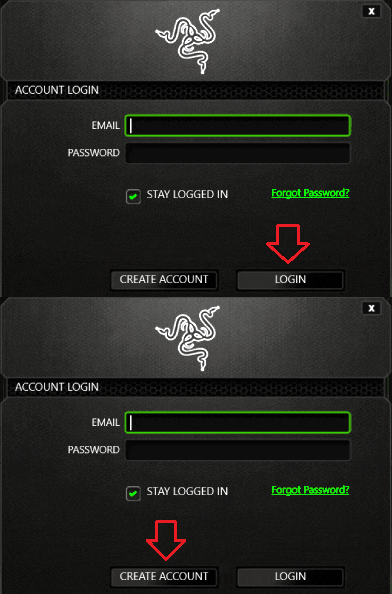 Some users don’t like to create an account, but without doing so, you will not be able to use and update the “Razer Synapse” software or use all the features of the device. Your device is compatible with “Razer Synapse 2” software. Download the software from the official website.

Download “Razer Synapse 2” software
You can check your device’s compatibility with other software versions. Check compatibility with other software versions.
Downloading and installing Driver/Software for Razer DeathStalker. This software is only for Razer devices (mouse, keyboard and other Razer devices).
This is a driver that will provide full functionality for your selected model.


Leave a Reply