Last Updated on 24.01.2026 by DriverNew
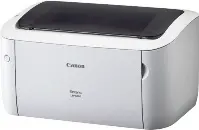 In this article, you will find complete instructions on how to download the Canon LBP6040 driver, install it correctly on your computer, and solve possible problems that may occur during installation or while using the printer.
Important Information Before Installation
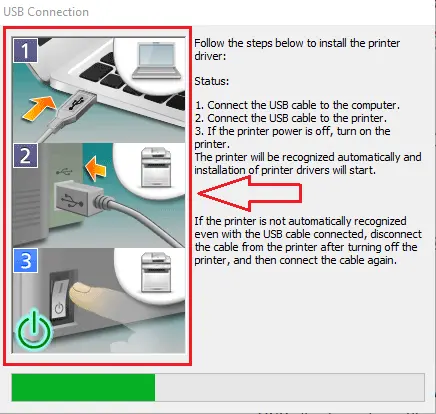
Before installing the Canon LBP6040 driver, please note one important rule: do not connect the printer to your computer before starting the installation. The printer must only be connected when the installation program asks you to do so. At that moment, a message will appear on the screen asking you to connect the Canon LBP6040 printer to the computer with a USB cable and turn it on. Only then will the system continue the installation.
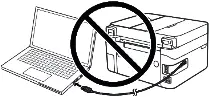
If you connect the printer earlier, the driver may not install correctly, and the Canon LBP6040 printer will not work. Prepare the printer and USB cable in advance so they are close to the computer. During installation, there is a limited time to connect the printer. If you do not connect it in time, the installation will stop, and the driver will not be installed.
Download the Canon LBP6040 Driver
Official Canon drivers for the Canon LBP6040 are available on the Canon website. However, for each operating system there are several versions of the driver, and many users are not sure which one to choose. To make it easier, below are links to the most suitable versions of the driver for each operating system. These drivers work correctly and allow you to use all functions of the Canon LBP6040 printer.
Printer drivers for Windows 11, Windows 10, Windows 8.1, Windows 7 (64-bit):

Download printer driver for Windows (64-bit)
Original version of Canon LBP6040 printer driver (in English).
Step-by-Step Installation of the Canon LBP6040 Driver
Once you have downloaded the Canon LBP6040 driver, you can begin the installation process.
Since the file is archived, double-click on the downloaded file to extract it. In the same folder, a new folder with the same name will appear. Open this folder, find [UFRII → uk_eng → x64], and double-click [Setup.exe]. This will start the installation wizard for the Canon LBP6040 driver.

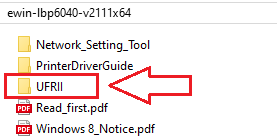
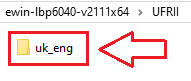
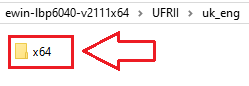
![Open this folder, find [UFRII → uk_eng → x64], and double-click [Setup.exe]](https://drivernew.com/wp-content/uploads/2026/01/40099.png)
A window will appear on the screen asking you to select the connection method. In most cases, a USB connection is used, but network setup is also available.
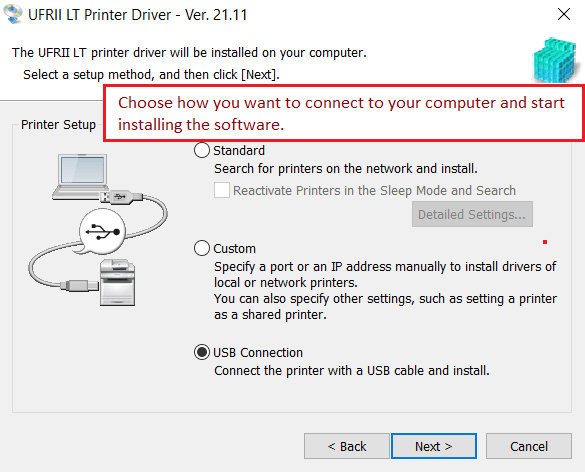
During the USB installation process, the program will display a message asking you to connect the Canon LBP6040 printer to your computer using a USB cable and turn it on. After you complete this step, the installation will continue and finish automatically.
If you plan to use the Canon LBP6040 printer in a network environment, first configure the network settings using the [MF/LBP Network Setup Tool] and then install the driver. If you are using a USB connection, you only need to install the driver.
![first configure the network settings using the [MF/LBP Network Setup Tool]](https://drivernew.com/wp-content/uploads/2026/01/50299.png)
Why it is important to install the driver specifically for Canon LBP6040 (not a “similar” driver from other models)
Canon LBP6040 has an official Canon driver package where this model is explicitly listed as supported (LBP6040/6030 Printer Driver Ver. 21.11). This package contains the correct INF entries and components that Windows uses to properly bind the driver to the device and ensure stable printing.
If you install a driver from another model “at random,” you often get a situation where the package seems to install, but the printer is not bound to the correct driver (Windows detects the device but uses a different or incompatible driver), or you get “partial installs” and printing/queue errors (because the driver may not include LBP6040 in the list of supported models).
For example, Canon has a package for LBP6030w/LBP6030B/LBP6030 where “Supported Models” lists only those models; LBP6040 is not included, so using that package as a “universal” driver for LBP6040 is a bad idea.
If Setup.exe does not install because of the Windows language, use the INF method (official workaround)
Canon releases different driver builds for different Windows language editions. For the English package, Canon explicitly states a limitation: it is not used on Windows Japanese. Conversely, for the Japanese package, Canon states that it is not used on Windows English.
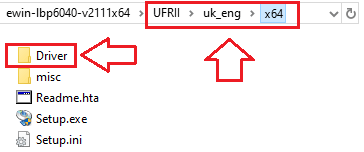
If Setup.exe refuses to run or install because of this, it does not mean the driver is wrong for the printer. Canon separately describes installation by selecting the INF: after extracting the package, you install the driver by pointing Windows to the [Driver] folder inside the downloaded driver files.
Step-by-step installation (via INF, if you have problems installing via Setup.exe)
Run ewin-lbp6040-v2111x64.exe and extract it to a folder that is convenient for you. Open that folder and make sure it contains: …\UFRII\uk_eng\x64\Driver
1. Connect and turn on the printer
Connect the Canon LBP6040 to the computer using a USB cable. Turn on the printer and wait about 10–20 seconds.
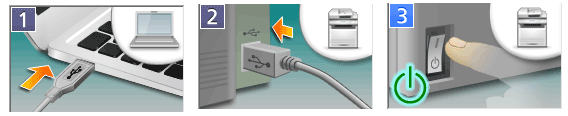
If Windows shows the status “Driver unavailable,” just continue — the next steps will fix it.
2. Open the classic “Add Printer” wizard
Press Win + R. Type control and press Enter to open Control Panel.
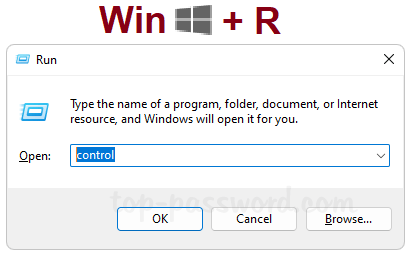
In Control Panel, go to: Hardware and Sound → Devices and Printers. Click “Add a printer.” The system will start searching for connected printers.
If your printer does not appear in the list, click: “The printer that I want isn’t listed.”
3. Choose manual setup
In the window that opens, select: “Add a local printer or network printer with manual settings” and click “Next.”
In “Choose a printer port,” select “Use an existing port.” From the list, select USB001 (Virtual printer port for USB). Click “Next.”
Note: If printing does not work later, you can try USB002 in: Right-click the printer → “Printer properties” → “Ports” tab.
4. Install the Canon driver using “Have Disk…”
In “Install the printer driver,” click: “Have Disk…” → “Browse…”
In the file selection window, go to the folder where you extracted the driver, then to: …\UFRII\uk_eng\x64\ Select the “Driver” folder and click “Open” → “OK.”
A list of models will appear. Select: Canon LBP6040 and click “Next.”
If the system asks whether you want to replace the existing driver, select: “Replace the current driver” → “Next.”
Enter a printer name, for example Canon LBP6040, then click: “Next” → “Finish.”
After the installation is complete, return to “Devices and Printers”: Right-click the new printer. Select “Printer properties.” Click “Print Test Page” to verify printing.
This video shows you how to install a device driver manually using “Have Disk” in the Windows operating system.



Leave a Reply