Last Updated on 14.10.2025 by DriverNew
In this article, you will find complete instructions on how to download the Canon imageRUNNER ADVANCE 6255 driver, install it correctly on your computer, and solve possible problems that may occur during installation or while using the printer.
Important Information Before Installation
Before installing the Canon imageRUNNER ADVANCE 6255 driver, please note one important rule: do not connect the printer to your computer before starting the installation. The printer must only be connected when the installation program asks you to do so. At that moment, a message will appear on the screen asking you to connect the Canon imageRUNNER ADVANCE 6255 printer to the computer with a USB cable and turn it on. Only then will the system continue the installation.
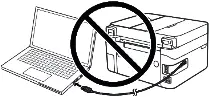
If you connect the printer earlier, the driver may not install correctly, and the Canon imageRUNNER ADVANCE 6255 printer will not work. Prepare the printer and USB cable in advance so they are close to the computer. During installation, there is a limited time to connect the printer. If you do not connect it in time, the installation will stop, and the driver will not be installed.
Download the Canon imageRUNNER ADVANCE 6255 Driver
Official Canon drivers for the Canon imageRUNNER ADVANCE 6255 are available on the Canon website. However, for each operating system there are several versions of the driver, and many users are not sure which one to choose. To make it easier, below are links to the most suitable versions of the driver for each operating system. These drivers work correctly and allow you to use all functions of the Canon imageRUNNER ADVANCE 6255 printer.

Software for Windows operating systems
Download printer driver for Windows (64-bit / 32-bit) UFR II Printer Driver Operating Systems: Windows 11, Windows 10 (64-bit), Windows 10 (32-bit), Windows 8.1 (64-bit), Windows 8.1 (32-bit), Windows 7 (64-bit), Windows 7 (32-bit), Windows Vista (64-bit), Windows Vista (32-bit) |

Software for MAC operating systems
Download printer driver for MAC UFR II Printer Driver Operating Systems: macOS Tahoe 26, macOS 15 (Sequoia), macOS 14 (Sonoma), macOS 13 (Ventura), macOS 12 (Monterey), macOS 11 (Big Sur), macOS 10.15 (Catalina) |
Step-by-Step Installation of the Canon imageRUNNER ADVANCE 6255 Driver
Once you have downloaded the Canon imageRUNNER ADVANCE 6255 driver, you can begin the installation process.
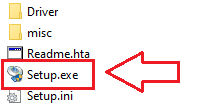
Since the file is archived, double-click on the downloaded file to extract it. In the same folder, a new folder with the same name will appear. Open this folder, and double-click [Setup.exe]. This will start the installation wizard for the Canon imageRUNNER ADVANCE 6255 driver.
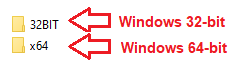
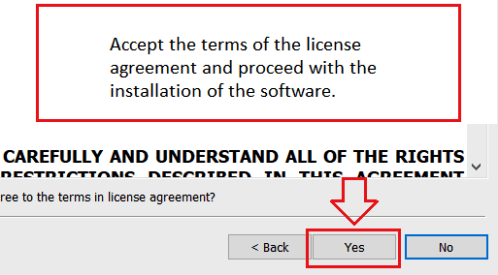
Accept the terms of the license agreement and proceed with the installation of the software.
A window will appear on the screen asking you to select the connection method. In most cases, a USB connection is used, but network setup is also available.
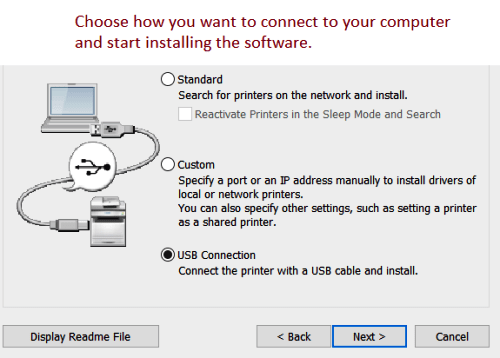
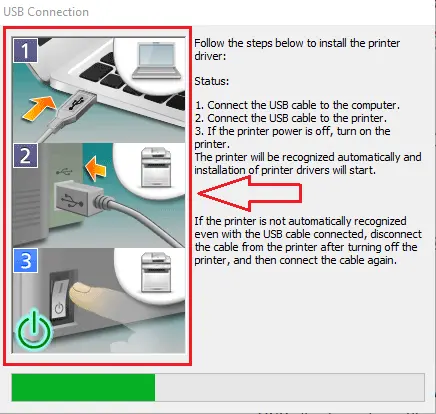
During the USB installation process, the program will display a message asking you to connect the Canon imageRUNNER ADVANCE 6255 printer to your computer using a USB cable and turn it on. After you complete this step, the installation will continue and finish automatically.
Color Network ScanGear 2
Scanner driver for operating systems Windows 11, Windows 10, Windows 8, Windows 8.1, Windows 7 (64-bit / 32-bit)
Download scanner driver for Windows
File version: V2.31. File Size: 14 MB
Double-click the files to decompress them. A new folder will be created in the same folder. The new folder will have the same name as the compressed file. Double-click the decompressed Setup.exe file to start installation.
You can scan using free Windows tools or the NAPS2 app.
Windows Scan is a free app for Windows 11, Windows 10, and Windows 8.1 that you can download from the Microsoft Store and use to scan documents and pictures.
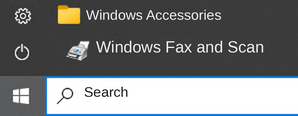
Windows Fax and Scan is a built-in app for Windows 10, 8.1, 8, and 7. To open it, click Start or use Windows Search. In the search box, type: Windows Fax and Scan.
NAPS2 is a free scanning app that lets you save files as PDF, TIFF, JPEG, or PNG and offers more flexible settings.
To learn more about these apps, which one to choose, and how to use them, read this article.
Important: These apps require a scanner driver. If a driver from the manufacturer is available for your model, it is best to install it first. If Windows has already installed a driver automatically and scanning works properly, reinstalling it is usually not necessary.
Common Problems and Solutions
Sometimes users face problems when installing the Canon imageRUNNER ADVANCE 6255 driver. The most common issue occurs when the printer is connected to the computer before the driver installation. In this case, Windows may automatically install the wrong driver, and the printer will not work. If this happens, click “Cancel” in the “New Hardware Found” window, disconnect the cable, and restart the installation process.
Another situation is when the driver is installed, but the Canon imageRUNNER ADVANCE 6255 printer still does not print. In this case, connect the printer directly with a USB cable, without using adapters or extensions. If necessary, try another USB port or replace the cable.
Problems can also appear if the driver was installed incorrectly. To fix this, remove the installed driver completely, download the latest version from the Canon website, reinstall it, and restart the computer.
A common issue may also appear after a Windows update. If the Canon imageRUNNER ADVANCE 6255 printer stops working after the update, simply uninstall the old driver, install the new one, and restart your computer.
This video shows you how to remove the printer driver: Canon imageRUNNER ADVANCE 6255.
More details about these and other problems that may arise when installing the driver and using the printer can be read in this article.



Leave a Reply