Last Updated on 30.07.2025 by DriverNew
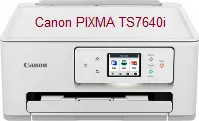 Drivers for printer and scanner: Canon PIXMA TS7640i. On this page of the website you will be able to download all the necessary drivers and software for this printer.
On the official Canon website for the Canon PIXMA TS7640i printer, you can download several different files that contain drivers and software. We recommend downloading and installing the drivers contained in the “MP Driver” file. This file contains drivers for the printer and scanner, as well as software for the scanner: “IJ Scan Utility.” Installing these drivers will not cause any problems. After installing these drivers, you will be able to use all the functions of your printer and scanner.
You can download the file containing all the necessary drivers and software for Canon PIXMA TS7640i printer on this page of the website. The file will be downloaded from the official Canon website.

Software for Windows operating systems
Download drivers and software for Windows MP Driver – TS7640i This drivers and software for operating systems: Windows 11, Windows 10 (64-bit), Windows 10 (32-bit), Windows 8.1 (64-bit), Windows 8.1 (32-bit), Windows 7 (64-bit), Windows 7 (32-bit) |

Software for MAC operating systems AirPrint Canon PIXMA TS7640i For Mac operating system, you do not need to download and install printer and scanner drivers. You can use the “AirPrint” software that is built into the Mac operating system. With this software, you can print and scan over a wireless LAN (WLAN). |

How to install drivers for printer and scanner: Canon PIXMA TS7640i. Do not connect the printer to the computer. Start installing the software first. During the installation process, a message will appear on the monitor informing you when to connect the printer to your computer.
This video shows how to install drivers for the Canon PIXMA TS7640i printer, and at what stage to connect the printer to your computer.
Installing drivers for printer and scanner: Canon PIXMA TS7640i. Double-click the downloaded file. It will be extracted from the archive and the driver installation will begin. Follow the instructions on the monitor screen to install the software and make the necessary settings.
How to fix problems that make your printer or scanner not work: Canon PIXMA TS7640i.
If you have installed the drivers for Canon PIXMA TS7640i but the printer or scanner does not work or stopped working after updating your Windows operating system, then follow the steps below to solve the problem. Completely uninstall the drivers and other software that was installed along with those drivers. After that, be sure to restart your computer and install the new drivers. Read more about how to properly install and uninstall printer and scanner drivers: read here.
Canon PIXMA TS7640i
 Important information for modern ARM laptop owners!
If your computer or laptop runs on the Windows 11 ARM operating system (for example, based on the latest Qualcomm Snapdragon X Elite, Snapdragon X Plus, or similar processors), you will not be able to install standard x86/x64 drivers from Canon. Due to the architectural features of the system, a classic launch of the installation file via a USB cable for the PIXMA and MAXIFY lineups leads to compatibility errors.
Nevertheless, wireless models can be successfully configured for basic printing without using official Canon software. How to bypass system limitations, start printing via Wi-Fi, and organize free document scanning is described in detail in our separate guide. Follow the link to read the material: Step-by-step instructions for installing Canon PIXMA/MAXIFY on Windows 11 ARM.
How to scan documents and photos
The ‘IJ Scan Utility’ is software for conveniently scanning photographs, documents, etc. In the Windows operating system, click the ‘Start’ button to find the shortcut for the ‘IJ Scan Utility’ software. You can then use your computer mouse to drag this shortcut to your desktop.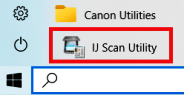
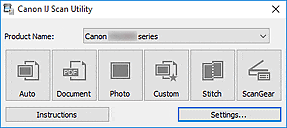 If you find it difficult to understand the settings of this software, then I offer you the easiest way to scan any documents and photos. To do this, use one button ‘Photo’. By clicking on this button, you can scan any documents and photos. The scanned document will be saved to your computer. The quality of the scanned documents is good, so you do not need to change the software settings. Many users of this software use one ‘Photo’ button to scan documents or photos. If you need to change the location where the scanned image will be saved or change other scanner settings, then use the “Settings” button for this.
Canon PIXMA TS7640i
You can scan using free Windows tools or the NAPS2 app.
Windows Scan is a free app for Windows 11, Windows 10, and Windows 8.1 that you can download from the Microsoft Store and use to scan documents and pictures.
Windows Fax and Scan is a built-in app for Windows 10, 8.1, 8, and 7. To open it, click Start or use Windows Search. In the search box, type: Windows Fax and Scan.

NAPS2 is a free scanning app that lets you save files as PDF, TIFF, JPEG, or PNG and offers more flexible settings.
To learn more about these apps, which one to choose, and how to use them, read this article.
Important: These apps require a scanner driver. If a driver from the manufacturer is available for your model, it is best to install it first. If Windows has already installed a driver automatically and scanning works properly, reinstalling it is usually not necessary.
Canon PIXMA TS7640i: Compact All in One Printer with Smart Features
The Canon PIXMA TS7640i is a sleek, space-saving A4 inkjet multifunction device ideal for home or small office use. It offers sharp output at a high resolution of up to 1200 × 1200 dpi, and delivers quick print speeds of approximately 15 ipm for mono documents and 10 ipm for colour. Borderless 10 × 15 cm photo prints take just around 19 seconds. The printer supports automatic duplex printing, dual paper feeding (front cassette and rear tray), and includes a user-friendly 2.7 inch colour tilting touchscreen with Canon’s intuitive Switch UI interface. Connectivity options include Wi Fi, Wi Fi Direct, USB, and compatibility with mobile apps like Canon PRINT, Apple AirPrint, and Mopria for seamless wireless printing from phones and tablets.
This model uses Canon FINE ink system, supplied with two cartridges: PG 485 black and CL 486 colour. High yield XL options (PG 485XL and CL 486XL) are available for longer print runs, with typical yields around 180 pages standard or 300 pages with XL versions for both black and colour on plain A4 paper, and up to approximately 65 (or 109 with XL) 10 × 15 cm photos. Additional features include a flatbed CIS colour scanner with up to 1200 × 2400 dpi optical resolution, an easily replaceable maintenance cartridge (MC G06), and support for a variety of paper types including glossy, matte, semi gloss photo papers, envelopes, and even iron on transfers.



Leave a Reply