Last Updated on 28.05.2026 by DriverNew
Driver for printer: Canon PIXMA iP7240. On this page of the website you will be able to download all the necessary drivers and software for this printer.
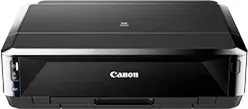
On the official Canon website for the Canon PIXMA iP7240 printer, you can download several different files that contain drivers and software. If you have problems with installing these drivers or you do not know which driver to choose for installation, then we recommend downloading and installing the drivers that are in the file: “Printer Driver”. There will be no problem installing these drivers. After installing these drivers, you will be able to use all the functions of your printer.
You can download the file containing all the necessary drivers and software for Canon PIXMA iP7240 printer on this page of the website. The file will be downloaded from the official Canon website.

Software for Windows operating systems
Download drivers and software for Windows Canon PIXMA iP7240 Printer Driver This drivers and software for operating systems: Windows 11, Windows 10 (64-bit), Windows 10 (32-bit), Windows 8.1 (64-bit), Windows 8.1 (32-bit), Windows 7 (64-bit), Windows 7 (32-bit), Windows Vista (64-bit), Windows Vista (32-bit), Windows XP |

Software for MAC operating systems AirPrint Canon PIXMA iP7240 You do not need to download and install printer drivers for Mac operating system. You can use the “AirPrint” software built into the Mac operating system. With this software, you can print via a wireless local area network (WLAN). |

How to install drivers for printer: Canon PIXMA iP7240. Do not connect the printer to the computer. Start installing the software first. During the installation process, a message will appear on the monitor informing you when to connect the printer to your computer.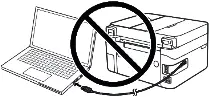 If you see the message ‘Found New Hardware’ on the screen, click Cancel and disconnect the USB cable. Then proceed to install the software. A common mistake when installing a driver is that you first connect the device to your computer using a USB cable and then install the driver. In this case, the operating system detects the connected device and installs its own driver, which may not work correctly or not work at all. However, some other devices may work fine with the driver installed by the operating system. Therefore, if there is a driver specially created for your device, then first start installing this driver and only then connect the device to the computer.
Installing drivers for printer: Canon PIXMA iP7240. Double-click the downloaded file. It will be extracted from the archive and the driver installation will begin. Follow the instructions on the monitor screen to install the software and make the necessary settings.
How to fix problems that are causing your printer not to work: canon PIXMA iP7240.
If you have installed the driver for Canon PIXMA iP7240 but the printer does not work or stopped working after updating your Windows operating system, then follow the steps below to fix the problem. Uninstall the driver completely. After that, be sure to restart your computer and install the new driver. Learn more about how to properly install or uninstall a printer driver: read here.
🛠️ How to Fix: Canon PIXMA iP7240 Setup Stuck on “Connect the Printer” Screen
A situation where the official Canon installer asks you to connect the printer via USB but fails to detect it is very common in Windows 11. The solution to this issue depends entirely on the type of processor inside your computer or laptop.
Option A: If You Have a Modern ARM-Based Laptop
This problem **applies to the entire lineup of laptops running on ARM processors** (such as Qualcomm Snapdragon X Elite, Snapdragon X Plus, Microsoft SQ, etc.). On these devices, the official Canon USB driver for the iP7240 model will not work due to Windows 11 ARM core security restrictions that block legacy x86/x64 drivers.
Step-by-Step Solution via Wi-Fi (No USB Cable Needed):
- Disconnect the USB cable from your laptop and completely close the Canon installation software.
- Connect your iP7240 printer to your home Wi-Fi router. To do this, press and hold the Wi-Fi button on the printer until the indicator flashes, then press the WPS button on your router.
- Make sure your ARM laptop is connected to the exact same Wi-Fi network.
- In Windows 11, navigate to Settings ➔ Bluetooth & devices ➔ Printers & scanners.
- Click the Add device button. The operating system will automatically scan the local network, detect your printer via the built-in AirPrint/IPP protocol, and install a compatible generic Microsoft driver. Your printer is now ready to use.
Option B: If You Have a Standard Computer or Laptop (Intel / AMD)
If your PC runs on a traditional Intel or AMD processor, the issue is caused by a USB communication glitch or a Windows 11 port conflict. The official driver is fully compatible, but the system needs manual help to recognize the connected hardware.
Step-by-Step Solution to Fix the USB Connection Glitch:
- Change the USB Port and Cable: Unplug the printer. Connect the USB cable into a different port. If you are using a desktop PC, use the ports on the back of the motherboard. If you are using a laptop, try a black USB 2.0 port instead of a blue USB 3.0 port. Avoid using external USB hubs or extension cables.
- Power Cycle the Printer: When the installation program asks you to connect the cable again, turn the printer off using its physical power button, wait 10 seconds, and turn it back on. This forced restart often triggers Windows to refresh the port status.
- Alternative Method (Manual Driver Assignment):
- Leave the stuck Canon installer window open and open the Windows Device Manager.
- Look through the list for a line with a yellow warning icon (it might be named “USB Printing Support” or “Unknown Device”).
- Right-click on it, select Update driver ➔ Browse my computer for drivers.
- Specify the path to the folder where the official Canon installer files were extracted (usually located in a temporary folder on your C: drive or within your Downloads directory) and click “Next”. The setup assistant should now detect the device and complete the installation successfully.
Pro Tip: If you are on a standard PC (Intel/AMD) and continue to experience frustrating USB connection errors, you can completely skip the cable method. Simply connect your printer to your router using the Wi-Fi method shown in Step 1 of Option A. This bypasses Windows 11 USB port issues entirely.



Leave a Reply