Last Updated on 01.07.2026 by DriverNew
 Drivers and software for operating systems Windows 11, Windows 10, Windows 8, Windows 8.1, Windows 7, Windows Vista, Windows XP (64-bit / 32-bit)
Printer Model: Canon PIXMA iP1200
This file will download and install the drivers, application or manual you need to set up the full functionality of your product.
How to install the printer driver correctly: Do not connect the printer to the computer. Start installing the software first. During the installation process, a message will appear on the monitor informing you when to connect the printer to your computer.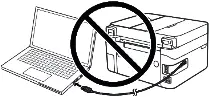 If you see the message ‘Found New Hardware’ on the screen, click Cancel and disconnect the USB cable. Then proceed to install the software. A common mistake when installing a driver is that you first connect the device to your computer using a USB cable and then install the driver. In this case, the operating system detects the connected device and installs its own driver, which may not work correctly or not work at all. However, some other devices may work fine with the driver installed by the operating system. Therefore, if there is a driver specially created for your device, then first start installing this driver and only then connect the device to the computer.
Software for Windows operating systems

Download drivers and software for Windows (size: 4,1 MB)
Download drivers and software for Windows XP (size: 7,2 MB)
Full Driver and Software Package (Windows)
Double-click the downloaded .exe file. It will be decompressed and the Setup screen will be displayed. Follow the instructions to install the software and perform the necessary settings.
 Important information for modern ARM laptop owners!
If your computer or laptop runs on the Windows 11 ARM operating system (for example, based on the latest Qualcomm Snapdragon X Elite, Snapdragon X Plus, or similar processors), you will not be able to install standard x86/x64 drivers from Canon. Due to the architectural features of the system, a classic launch of the installation file via a USB cable for the PIXMA and MAXIFY lineups leads to compatibility errors.
Nevertheless, wireless models can be successfully configured for basic printing without using official Canon software. How to bypass system limitations, start printing via Wi-Fi, and organize free document scanning is described in detail in our separate guide. Follow the link to read the material: Step-by-step instructions for installing Canon PIXMA/MAXIFY on Windows 11 ARM.
Printer Model: Canon PIXMA iP1200. This is a driver software that allows your computer to interface with a Canon printer


Leave a Reply