Last Updated on 29.07.2025 by DriverNew
Driver for printer: Canon PIXMA G1500. On this page of the website you will be able to download all the necessary drivers and software for this printer.
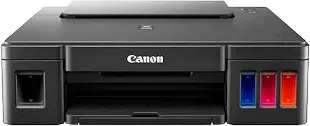
On the official Canon website for the Canon PIXMA G1500 printer, you can download several different files that contain drivers and software. If you have problems with installing these drivers or you do not know which driver to choose for installation, then we recommend downloading and installing the drivers that are in the file: “Printer Driver”. There will be no problem installing these drivers. After installing these drivers, you will be able to use all the functions of your printer.
You can download the file containing all the necessary drivers and software for Canon PIXMA G1500 printer on this page of the website. The file will be downloaded from the official Canon website.

Software for Windows operating systems
Download drivers and software for Windows Canon PIXMA G1500 Printer Driver This drivers and software for operating systems: Windows 11, Windows 10 (64-bit), Windows 10 (32-bit), Windows 8.1 (64-bit), Windows 8.1 (32-bit), Windows 7 (64-bit), Windows 7 (32-bit), Windows Vista (64-bit), Windows Vista (32-bit), Windows XP |

Software for MAC operating systems
Download drivers and software for MAC Canon PIXMA G1500 (Mac) This drivers and software for operating systems: macOS 15, macOS 14, macOS 13, macOS 12, macOS 11 |

How to install drivers for printer: Canon PIXMA G1500. Do not connect the printer to the computer. Start installing the software first. During the installation process, a message will appear on the monitor informing you when to connect the printer to your computer.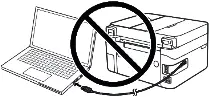 If you see the message ‘Found New Hardware’ on the screen, click Cancel and disconnect the USB cable. Then proceed to install the software. A common mistake when installing a driver is that you first connect the device to your computer using a USB cable and then install the driver. In this case, the operating system detects the connected device and installs its own driver, which may not work correctly or not work at all. However, some other devices may work fine with the driver installed by the operating system. Therefore, if there is a driver specially created for your device, then first start installing this driver and only then connect the device to the computer.
Installing drivers for printer: Canon PIXMA G1500. Double-click the downloaded file. It will be extracted from the archive and the driver installation will begin. Follow the instructions on the monitor screen to install the software and make the necessary settings.
How to fix problems that are causing your printer not to work: canon PIXMA G1500.
If you have installed the driver for Canon PIXMA G1500 but the printer does not work or stopped working after updating your Windows operating system, then follow the steps below to fix the problem. Uninstall the driver completely. After that, be sure to restart your computer and install the new driver. Learn more about how to properly install or uninstall a printer driver: read here.


Leave a Reply