Last Updated on 30.01.2024 by DriverNew
 Drivers and software for operating systems Windows 11, Windows 10, Windows 8, Windows 8.1, Windows 7, Windows Vista, Windows XP (64-bit / 32-bit)
Printer Model: Canon PIXMA MG8100
These are the drivers and software that are included on the CD that came with the printer.
How to install the printer driver correctly: Do not connect the printer to the computer. Start installing the software first. During the installation process, a message will appear on the monitor informing you when to connect the printer to your computer.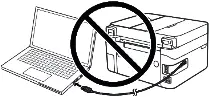 If you see the message ‘Found New Hardware’ on the screen, click Cancel and disconnect the USB cable. Then proceed to install the software. A common mistake when installing a driver is that you first connect the device to your computer using a USB cable and then install the driver. In this case, the operating system detects the connected device and installs its own driver, which may not work correctly or not work at all. However, some other devices may work fine with the driver installed by the operating system. Therefore, if there is a driver specially created for your device, then first start installing this driver and only then connect the device to the computer.

Software for Windows operating systems

Download drivers and software for Windows
File version: 1.05. File Size: 30 MB
Printer Model: Canon PIXMA MG8100
Full Driver and Software Package (Windows)
Double-click the downloaded .exe file. It will be decompressed and the Setup screen will be displayed. Follow the instructions to install the software and perform the necessary settings.

Canon PIXMA MG8100
MP Navigator EX. Ver. 4.03
Scanning Software – MP Navigator EX
This application software allows you to scan, save and print photos and documents. You can also edit images, or attach images to e-mail using this application software.
File version: 4.03. File Size: 47 MB
Download the file. For the location where the file is saved, check the computer settings. Double-click the downloaded EXE file to decompress it, then installation will start automatically.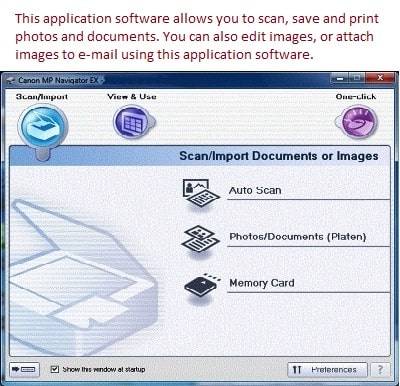 This application software allows you to scan, save and print photos and documents. You can also edit images, or attach images to e-mail. Using MP Navigator EX you can scan multiple documents at one time, or scan images larger than the platen. You can also save scanned images, attach them to e-mail or edit/print them.


Leave a Reply