Last Updated on 07.02.2025 by DriverNew
Maximum Temperature: Most modern AMD Radeon GPUs have a maximum temperature limit of 110°C, while older models typically range between 75°C and 95°C.
Below is a detailed table listing various AMD Radeon graphics card models, their maximum operating temperatures, and their maximum power consumption. This information is beneficial for users to monitor their GPU’s performance and ensure it operates within safe parameters.
| AMD Radeon Model | Maximum Temperature | Maximum Power Consumption |
| AMD Radeon RX 7900 XTX | 110°C | 355 W |
| AMD Radeon RX 7900 XT | 110°C | 315 W |
| AMD Radeon RX 7800 XT | 110°C | 300 W |
| AMD Radeon RX 7700 XT | 110°C | 245 W |
| AMD Radeon RX 7600 | 110°C | 165 W |
| AMD Radeon RX 6950 XT | 110°C | 335 W |
| AMD Radeon RX 6900 XT | 110°C | 300 W |
| AMD Radeon RX 6800 XT | 110°C | 300 W |
| AMD Radeon RX 6800 | 110°C | 250 W |
| AMD Radeon RX 6750 XT | 110°C | 250 W |
| AMD Radeon RX 6700 XT | 110°C | 230 W |
| AMD Radeon RX 6700 | 110°C | 220 W |
| AMD Radeon RX 6650 XT | 110°C | 180 W |
| AMD Radeon RX 6600 XT | 110°C | 160 W |
| AMD Radeon RX 6600 | 110°C | 132 W |
| AMD Radeon RX 6500 XT | 110°C | 107 W |
| AMD Radeon RX 6400 | 110°C | 53 W |
| AMD Radeon RX 5700 XT | 110°C | 225 W |
| AMD Radeon RX 5700 | 110°C | 180 W |
| AMD Radeon RX 5600 XT | 110°C | 150 W |
| AMD Radeon RX 5500 XT | 110°C | 130 W |
| AMD Radeon VII | 110°C | 300 W |
| AMD Radeon RX Vega 64 | 85°C | 295 W |
| AMD Radeon RX Vega 56 | 85°C | 210 W |
| AMD Radeon RX 590 | 85°C | 225 W |
| AMD Radeon RX 580 | 85°C | 185 W |
| AMD Radeon RX 570 | 85°C | 150 W |
| AMD Radeon RX 560 | 85°C | 80 W |
| AMD Radeon RX 550 | 85°C | 50 W |
| AMD Radeon RX 480 | 90°C | 150 W |
| AMD Radeon RX 470 | 90°C | 120 W |
| AMD Radeon RX 460 | 90°C | 75 W |
| AMD Radeon R9 Fury X | 65°C | 275 W |
| AMD Radeon R9 Fury | 65°C | 275 W |
| AMD Radeon R9 Nano | 65°C | 175 W |
| AMD Radeon R9 390X | 95°C | 275 W |
| AMD Radeon R9 390 | 95°C | 275 W |
| AMD Radeon R9 380X | 75°C | 190 W |
| AMD Radeon R9 380 | 75°C | 190 W |
| AMD Radeon R9 370X | 75°C | 180 W |
| AMD Radeon R9 370 | 75°C | 150 W |
| AMD Radeon R9 360 | 75°C | 100 W |
| AMD Radeon R9 295X2 | 75°C | 500 W |
| AMD Radeon R9 290X | 95°C | 290 W |
| AMD Radeon R9 290 | 95°C | 275 W |
| AMD Radeon R9 280X | 85°C | 250 W |
| AMD Radeon R9 280 | 85°C | 200 W |
| AMD Radeon R9 270X | 85°C | 180 W |
| AMD Radeon R9 270 | 85°C | 150 W |
| AMD Radeon R9 265 | 85°C | 150 W |
| AMD Radeon HD 7990 | 75°C | 375 W |
| AMD Radeon HD 7970 GHz Edition | 79°C | 250 W |
| AMD Radeon HD 7970 | 79°C | 230 W |
| AMD Radeon HD 7950 | 79°C | 200 W |
| AMD Radeon HD 7870 | 79°C | 175 W |
| AMD Radeon HD 7850 | 79°C | 130 W |
| AMD Radeon HD 7790 | 79°C | 85 W |
| AMD Radeon HD 7770 | 79°C | 80 W |
| AMD Radeon HD 7750 | 79°C | 55 W |
Note: The maximum temperatures listed are based on available data and may vary depending on specific models and cooling solutions. Power consumption values are approximate and can vary based on system configuration and workload.
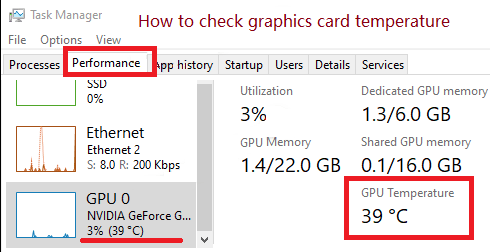
How to check graphics card temperature
Windows Task Manager
You can find out the temperature of the video card in Windows 11 and Windows 10 operating systems. To do this, press “Ctrl+Alt+Del” to open “Task Manager”. After that, open the “Performance” tab where you can see the temperature of your graphics card.
GPU-Z
You can also find out the temperature of your graphics card using GPU-Z software. This is a handy software designed to get all the information about your graphics card and GPU.
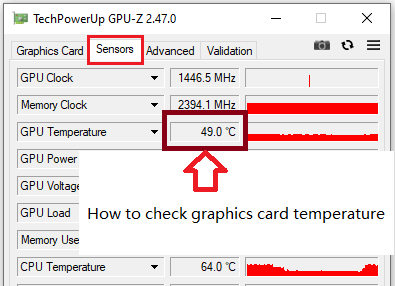
The new and free version of the GPU-Z software can be downloaded from the website of the developer of this software – https://www.techpowerup.com/download/techpowerup-gpu-z/


Leave a Reply