Last Updated on 10.01.2025 by DriverNew
 Drivers and software for operating systems Windows 11, Windows 10, Windows 8, Windows 8.1, Windows 7, Windows Vista (64-bit / 32-bit)
Printer Model: Epson WorkForce Pro WF-4640DTWF
Drivers for Epson WorkForce Pro WF-4640DTWF printer. Several files are available for download on the official Epson website for this model, and it is not always clear which one you should choose. This article provides links to verified installation files from the official Epson website that contain the necessary drivers and software for the full operation of the device and usually do not cause installation problems. The article also includes instructions for the proper installation of the software for the Epson WorkForce Pro WF-4640DTWF printer. If you have difficulties installing drivers or if the printer does not work properly after installation, read here about ways to solve such problems.
How to install the printer driver correctly: Do not connect the printer to the computer. Start installing the software first. During the installation process, a message will appear on the monitor informing you when to connect the printer to your computer.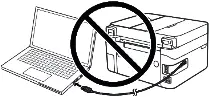 If you see the message ‘Found New Hardware’ on the screen, click Cancel and disconnect the USB cable. Then proceed to install the software. A common mistake when installing a driver is that you first connect the device to your computer using a USB cable and then install the driver. In this case, the operating system detects the connected device and installs its own driver, which may not work correctly or not work at all. However, some other devices may work fine with the driver installed by the operating system. Therefore, if there is a driver specially created for your device, then first start installing this driver and only then connect the device to the computer. If you installed the driver incorrectly, uninstall the driver, restart your computer, and reinstall the software. Be sure to restart your computer after installing and after uninstalling the drivers. The download is carried out from the official website of Epson.

Software for Windows operating systems
Download drivers and software for Windows Download and install software for Epson WorkForce Pro WF-4640DTWF: printer drivers and software. |

Software for MAC operating systems
Download drivers and software for MAC Download and install software for Epson WorkForce Pro WF-4640DTWF: printer drivers and software. |

Epson WorkForce Pro WF-4640DTWF
Double-click the downloaded .exe file. It will be decompressed and the Setup screen will be displayed. Follow the instructions to install the software and perform the necessary settings. After installing this software, you will be able to print, scan and use all printer features. You don’t need any other software.
How to scan documents and photos.
The ‘Epson Scan’ is software for conveniently scanning photographs, documents, etc. In the Windows operating system, click the ‘Start’ button to find the shortcut for the ‘Epson Scan’ software. You can then use your computer mouse to drag this shortcut to your desktop.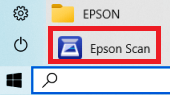
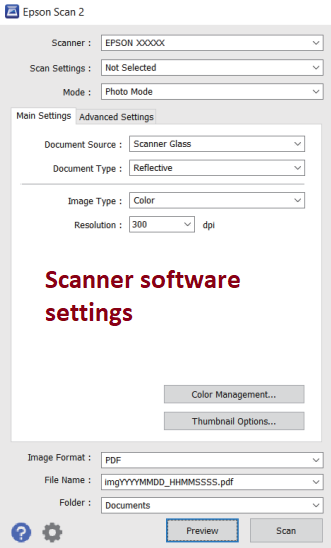 If you find it difficult to understand the settings of this software, then I offer you the easiest way to scan any documents and photos. To do this, use the ‘Photo Mode’ mode and you can scan any documents and photos. Many users of this software use ‘Photo Mode’ to scan documents or photos. If you need to change the location where the scanned image will be saved, then use ‘Folder’ for this. Recommended scanning quality: 300 dpi (suitable for scanning any documents and photos). The higher the quality, the longer the scan takes and the larger the file size. Save type ‘JPEG’ or ‘PNG’ is better for scanning. The quality of the scanned documents is good and there is no need to change other program settings.
Epson WorkForce Pro WF-4640DTWF



Leave a Reply