Last Updated on 19.03.2024 by DriverNew
 Driver and Software for operating system: Windows 11 and Windows 10 (64-bit). Mac OS is not supported.
Mouse model: Razer Naga Hex V2 | RZ01-0160
Product name: Naga Hex V2
Model number: RZ01-0160
Drivers for Razer devices are installed or updated using the “Razer Synapse” software. This software automatically detects your Razer device connected to your computer and allows you to make the necessary settings. If your device is not compatible with “Razer Synapse” software, the Windows operating system will automatically install the correct driver. Therefore, there is no need to download drivers separately.
The “Razer Synapse” software has two versions: version 2 and version 3. Older devices are supported by the “Razer Synapse 2” software. Some devices are supported by both versions of this software. All new devices are supported only by “Razer Synapse 4” software. Your device is compatible with “Razer Synapse 4” software.
To use the “Razer Synapse” software, you need to create an account (Razer ID account) on the official website https://razerid.razer.com/new. You can create an account before or after installing the software (an email address is required). Use your username and password to log into your account to start using the software. After this, all device functions will be available offline and without an Internet connection. If you have not previously registered with this software, you will need to make a new registration. If you have previously registered in at least one version of this software, then you can and should use the same login and password in another version of the software.
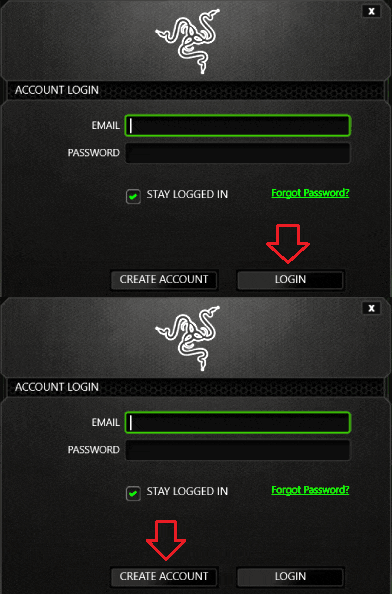 Some users don’t like to create an account, but without doing so, you will not be able to use and update the “Razer Synapse” software or use all the features of the device. Your device is compatible with “Razer Synapse 4” software. Download the software from the official website.

Software for Windows operating systems

Download “Razer Synapse 4” software
This software is only compatible with operating systems: Windows 11 and Windows 10 (64-bit). Mac operating system is not supported.
Mouse model: Razer Naga Hex V2 | RZ01-0160
Product name: Naga Hex V2
Model number: RZ01-0160
How to adjust the DPI setting on a Razer mouse through “Razer Synapse”.
Open “Razer Synapse” and click on your “mouse”. Go to “PERFORMANCE” tab. Toggle “Sensitivity Stages” on. Select the number of sensitivity stages you prefer. Key in the specific DPI stage you want to apply.


How to manually change the DPI Sensitivity on a Razer mouse.
Depending on the mouse, the sensitivity rate can be as low as 100 DPI and be as high as 26,000 DPI. Follow the steps below to adjust the DPI manually. Check the DPI buttons at the back of the scroll wheel. Increase, decrease, or cycle through the DPI stages using the sensitivity buttons of your mouse. For dual sensitivity buttons: The first button from the scroll increases the DPI upon click. Click this repeatedly until you reach the sensitivity your desire. The second button from the scroll decreases the DPI upon click. Click this alternately with the increase button to get the exact adjustment you want to achieve.
For single sensitivity buttons: Click on the DPI cycle button repeatedly to cycle up until you reach the desired sensitivity.
How to fix “Razer Synapse 4” when it crashes or fails to start.
Follow the steps below to fix Razer Synapse 4 when it crashes or fails to start. Right-click on the Razer Central icon in the system tray. Click on “Log In”, and enter your registered RazerID or Guest account. Run “Razer Synapse 4” as administrator.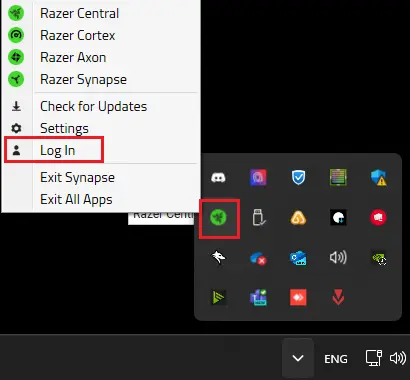 Run “Task Manager” if the issue persists. Go to “Services”. Check if the following services are running: Razer “Central Service”, Razer “Synapse Service”.
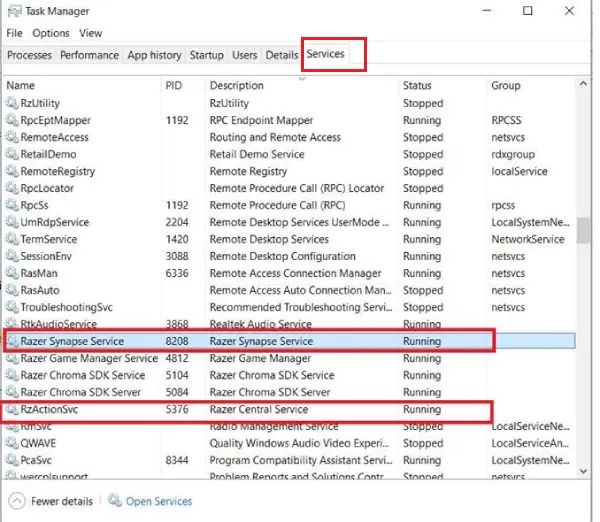 Right-click on “Razer Central Service”. Select “Start” or “Restart”. Do the same for “Razer Synapse Service”. If the issue persists, perform a clean reinstall of “Razer Synapse 4”.
Mouse model: Razer Naga Hex V2 | RZ01-0160
Product name: Naga Hex V2
Model number: RZ01-0160


Leave a Reply