Last Updated on 17.11.2024 by DriverNew
 Operating systems: Windows 11, Windows 10, Windows 8, Windows 8.1, Windows 7, Windows Vista, Windows XP (64-bit / 32-bit)
Printer Model: Kyocera ECOSYS P7040cdn
Drivers for Kyocera ECOSYS P7040cdn printer. Download and install all necessary drivers and software. After installing this software, you will be able to use all the features of your Kyocera ECOSYS P7040cdn printer. If you have difficulties installing drivers or if the printer does not work properly after installation, read here about ways to solve such problems.
Kyocera Printer Driver
For Kyocera printers in Windows 11, 10, 8, 8.1, and 7, the best option is usually to install the KX Universal Printer Driver. This is Kyocera’s main universal driver, which is listed on the official website as the recommended print driver with advanced features. It is convenient to use instead of other Kyocera universal drivers, such as KX v4 and Classic Universal Printer Driver, because it provides good compatibility, easy installation, and access to the main device features. If the goal is to set up printing quickly and without unnecessary complications, the first thing to download and install is the KX Universal Printer Driver.
You can download the latest version of this driver from the official website or by using the following direct link:

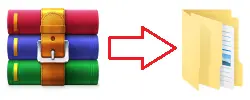
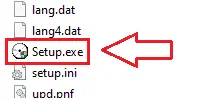
Installation is standard: download the ZIP archive, extract it to a separate folder, run Setup.exe as administrator, and follow the installation wizard prompts. If file name extensions are hidden in the folder and you cannot find Setup.exe, look for a file named Setup. It is the same file; Windows may simply have file extensions hidden.
If the program asks you to choose additional features during Express Install, for most users it is enough to enable printing a test page so you can immediately confirm that the driver is installed correctly and the printer is working. The other optional features are not required and can be configured later in Printer Properties if needed. If the device is connected over the network, it is usually more convenient to add it by IP address, because this often helps avoid automatic detection errors. After the installation is complete, it is a good idea to open Printer Properties in Windows, check the paper size and print quality, and set the device as the default printer if necessary.
One of the most common problems is that Windows does not detect the device automatically or installs it incorrectly. In that situation, it is better not to use automatic detection. Instead, run Setup.exe as administrator and, for a network connection, add the device by IP address. If the printer is installed but printing does not work correctly, some settings are unavailable, jobs are stuck in the queue, the device appears offline, or driver errors appear after a Windows update, remove the old driver, restart the computer, and reinstall the KX Universal Printer Driver. If that does not help, use this guide: How to Fix Problems That Cause the Printer or Scanner to Stop Working.
Download and install the driver Kyocera ECOSYS P7040cdn. This is a driver that will provide full functionality for your selected model.


Leave a Reply