Last Updated on 30.01.2024 by DriverNew
 Drivers and software for operating systems Windows 11, Windows 10, Windows 8, Windows 8.1, Windows 7 (64-bit / 32-bit)
Printer Model: Canon PIXMA G2560
These are the drivers and software that are included on the CD that came with the printer.
This software is designed to install printer and scanner drivers and other software to provide full printer and scanner functionality.
How to install the printer driver correctly: Do not connect the printer to the computer. Start installing the software first. During the installation process, a message will appear on the monitor informing you when to connect the printer to your computer.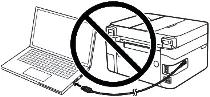 If you see the message ‘Found New Hardware’ on the screen, click Cancel and disconnect the USB cable. Then proceed to install the software. A common mistake when installing a driver is that you first connect the device to your computer using a USB cable and then install the driver. In this case, the operating system detects the connected device and installs its own driver, which may not work correctly or not work at all. However, some other devices may work fine with the driver installed by the operating system. Therefore, if there is a driver specially created for your device, then first start installing this driver and only then connect the device to the computer.

Software for Windows operating systems
Download drivers and software for Windows Operating systems: Windows 11, Windows 10 (64-bit), Windows 10 (32-bit), Windows 8.1 (64-bit), Windows 8.1 (32-bit), Windows 7 (64-bit), Windows 7 (32-bit) |

Software for MAC operating systems
|

Canon PIXMA G2560 : Prepare the printer for connection to your computer in advance. Remove the packaging from the printer and install the cartridge and paper.
Installing software for the Windows operating system

Double-click the downloaded .exe file. It will be decompressed and the Setup screen will be displayed. Follow the instructions to install the software and perform the necessary settings. After installing this software, you will be able to print and scan.
Canon PIXMA G2560
 Important information for modern ARM laptop owners!
If your computer or laptop runs on the Windows 11 ARM operating system (for example, based on the latest Qualcomm Snapdragon X Elite, Snapdragon X Plus, or similar processors), you will not be able to install standard x86/x64 drivers from Canon. Due to the architectural features of the system, a classic launch of the installation file via a USB cable for the PIXMA and MAXIFY lineups leads to compatibility errors.
Nevertheless, wireless models can be successfully configured for basic printing without using official Canon software. How to bypass system limitations, start printing via Wi-Fi, and organize free document scanning is described in detail in our separate guide. Follow the link to read the material: Step-by-step instructions for installing Canon PIXMA/MAXIFY on Windows 11 ARM.
How to scan documents and photos
The ‘IJ Scan Utility’ is software for conveniently scanning photographs, documents, etc. In the Windows operating system, click the ‘Start’ button to find the shortcut for the ‘IJ Scan Utility’ software. You can then use your computer mouse to drag this shortcut to your desktop.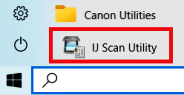
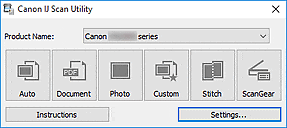 If you find it difficult to understand the settings of this software, then I offer you the easiest way to scan any documents and photos. To do this, use one button ‘Photo’. By clicking on this button, you can scan any documents and photos. The scanned document will be saved to your computer. The quality of the scanned documents is good, so you do not need to change the software settings. Many users of this software use one ‘Photo’ button to scan documents or photos. If you need to change the location where the scanned image will be saved or change other scanner settings, then use the “Settings” button for this.
Canon PIXMA G2560
Print with AirPrint on the Mac operating system
Check that your Canon printer is turned on and is connected to the same wireless network (sometimes referred to as WLAN) as your Mac. Double click on the “system Preferences” icon or choose Apple menu > System Preferences. Click the “Printers & Scanners” icon. Click the “+” symbol. Select the AirPrint printer you want to add, then click “Add”. The selected printer will be added to the printers list. Once added, to print using your AirPrint printer within an application, simply click “File” & then “Print”.

Detailed instructions on how to use the printing software
How to scan using AirPrint software on a Mac operating system
For scanning documents using your mac, please follow the steps below: Click the [Apple] menu. Then click [System Preferences]. Click [Printers & Scanners]. Click [Scan], then click [Open Scanner]. In the Scanner window, click [Show Details]. After the overview scan completes, you will be able to change any settings as required, and then click [Scan].
Detailed instructions for using the scanner software
Description of the Canon PIXMA G2560 printer: Type: color, 4 colors, inkjet. Format: A4. Connection: USB. Print resolution: 4800×1200 dpi. Scanning: 600×1200 dpi. B/W printing: 11 ppm. Color printing: 6 ppm. Photo printing: 45 pp.
Additional Information
If you have problems installing drivers or other software for your device (printer, scanner, monitor, keyboard, etc.), please tell us the model of your device and the version of your operating system (for example: Windows 11, Windows 10 64-bit, Windows 8 64-bit, etc.) and we will try to help you. Email us.
 How to install the driver if there is no setup.exe file and how to install the driver using the .INF file. In this case, open the downloaded file that should contain the driver and use the .INF file to install. In this article, we will tell and show you how to install a driver using an .INF file. |
 How to install a driver for an old printer in Windows 10 and Windows 11. Step-by-step instructions for finding a driver through Windows Update and manually adding a printer. This method may help if the official driver fails to install, is unavailable on the manufacturer's website, or the printer stops working after a Windows update. |
 If you can’t find scanner software or don’t know how to use your scanner to scan documents and photos. This problem occurs because some scanners and multifunction devices only have drivers, but do not have dedicated software to control the scanner. |
 How to fix problems with Xerox printers and multifunction devices on Windows 11 ARM laptops. The article explains why standard Windows x64 drivers may not work and how to install the Xerox Global Print Driver ARM64 for USB or network connections. Alternative methods for printing and scanning are also covered. |
 How to fix problems that prevent a printer or scanner from working. The article covers common driver installation errors and problems connecting devices via USB. It explains how to properly install or reinstall drivers, as well as how to install a driver using an INF file. |
Leave a Reply