Last Updated on 13.09.2026 by DriverNew
 Drivers and software for operating systems Windows 11, Windows 10, Windows 8, Windows 8.1, Windows 7 (64-bit / 32-bit)
Printer Model: HP LaserJet MFP M139w
Drivers for HP LaserJet MFP M139w printer and scanner. Several files are available for download on the official HP website for this model, and it is not always clear which one you should choose. This article provides links to verified installation files from the official HP website that contain the necessary drivers and software for the full operation of the device and usually do not cause installation problems. The article also includes instructions for the proper installation of the software for the HP LaserJet MFP M139w printer.
How to install the HP LaserJet MFP M139w printer driver correctly: Do not connect the printer to the computer. Start installing the software first. During the installation process, a message will appear on the monitor informing you when to connect the printer to your computer.
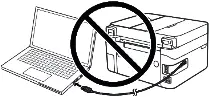
If you see the message ‘Found New Hardware’ on the screen, click Cancel and disconnect the USB cable. Then proceed to install the software. A common mistake when installing a driver is that you first connect the device to your computer using a USB cable and then install the driver. In this case, the operating system detects the connected device and installs its own driver, which may not work correctly or not work at all. However, some other devices may work fine with the driver installed by the operating system. Therefore, if there is a driver specially created for your device, then first start installing this driver and only then connect the device to the computer.

Software for Windows operating systems
Download drivers and software for Windows Windows 11, Windows 10, Windows 8, Windows 8.1, Windows 7 (64-bit / 32-bit) Download and install software for HP LaserJet MFP M139w: drivers and software for printer and scanner. |

Software for MAC operating systems
Download drivers and software for MAC Download and install software for HP LaserJet MFP M139w: drivers and software for printer and scanner. |

Installing drivers and software for printer and scanner: HP LaserJet MFP M139w. Double-click the downloaded .exe file. It will be decompressed and the Setup screen will be displayed. Follow the instructions to install the software and perform the necessary settings.

Important information for owners of modern ARM laptops!
If you are installing an HP printer or MFP on a Windows 11 ARM laptop, for example on a device with a Qualcomm Snapdragon, Snapdragon X, or Microsoft SQ processor, a regular driver for Windows x64 may not be suitable. The HP installer may start, but the print or scan driver may not install. As a result, Windows may show the “Driver unavailable” message, the printer may not work over USB, and on an MFP, printing may work while scanning does not.
For such devices, it is often better to use a network connection over Wi-Fi or Ethernet, add the printer by IP address, use the standard Microsoft IPP Class Driver, Mopria, or HP app if it supports your model. Read more about the specifics of installing HP printers and MFPs on Windows 11 ARM in a separate guide: Why an HP Printer or MFP Does Not Work on a Windows 11 ARM Laptop and How to Fix It.
After installing this software, you will be able to print, scan and use all printer features. You don’t need any other software.
HP LaserJet MFP M139w
This is original software. Software installation is simple and fast. Start installing the software. During the installation process, a message will appear on the monitor informing you when to connect the printer to your computer. Therefore, prepare the printer for connection to the computer in advance.
Software for scanning documents and photos.
Use the ‘HP Scan’ software to scan documents and photos. This software will be installed along with printer and scanner drivers. On the Windows operating system, click the ‘Start’ button to find the shortcut for the ‘HP Scan’ software. A shortcut to this software may also be found on the desktop of the Windows operating system. This is software for scanning photos and documents, saving scanned documents to a computer or sending these documents by e-mail, and other functions.
HP LaserJet MFP M139w
If you have problems using this software, you can use the easier way to scan documents and photos.
You can scan using free Windows tools or the NAPS2 app.
Windows Scan is a free app for Windows 11, Windows 10, and Windows 8.1 that you can download from the Microsoft Store and use to scan documents and pictures.
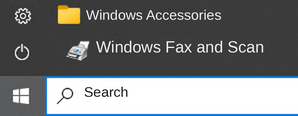
Windows Fax and Scan is a built-in app for Windows 10, 8.1, 8, and 7. To open it, click Start or use Windows Search. In the search box, type: Windows Fax and Scan.
NAPS2 is a free scanning app that lets you save files as PDF, TIFF, JPEG, or PNG and offers more flexible settings.
To learn more about these apps, which one to choose, and how to use them, read this article.
Important: These apps require a scanner driver. If a driver from the manufacturer is available for your model, it is best to install it first. If Windows has already installed a driver automatically and scanning works properly, reinstalling it is usually not necessary.
Installing printer and scanner drivers
For the HP LaserJet MFP M139w, you can use the full HP Easy Start installation package for Windows 11, Windows 10, and Windows 7. It supports connecting the MFP to the computer over a wireless network and via USB and installs the components required for printing and scanning.
If the MFP has already been installed on this computer
If this is the first installation of HP LaserJet MFP M139w, you can skip this section.
If the previous installation ended with an error, the device is detected incorrectly, or the scanner does not work, first remove the old configuration.
Windows 11
- If the USB cable is connected, disconnect it from the computer.
- Open “Settings → Bluetooth & devices → Printers & scanners”.
- Find HP LaserJet MFP M139w or a device displayed under the series name HP LaserJet MFP M139-M142 and remove it.
- Open “Settings → Apps → Installed apps”.
- If previously installed HP software for this series is listed, uninstall it.
- Restart the computer.
Windows 10
- If the USB cable is connected, disconnect it from the computer.
- Open “Settings → Devices → Printers & scanners”.
- Find HP LaserJet MFP M139w or HP LaserJet MFP M139-M142 and click “Remove device”.
- Open “Settings → Apps → Apps & features”.
- Uninstall previously installed HP software for this series if it is present.
- Restart the computer.
Additional removal of the old driver
If the problem persists after normal removal:
- Press Win + R.
- Enter
printui /s /t2and press Enter. - Open the “Drivers” tab.
- Find the driver related to HP LaserJet MFP M139-M142.
- If it is no longer in use, select it and click “Remove”.
- If Windows offers a choice, use “Remove driver and driver package”.
- Restart the computer.
Installing HP LaserJet MFP M139w drivers in Windows 11 and Windows 10
Use the following installation package:
HPEasyStart-13.6.5-LJM139-M142_UWL_54_3_5248_1_Webpack.exe
Step 1: Launch HP Easy Start
- Double-click the downloaded HPEasyStart-13.6.5-LJM139-M142_UWL_54_3_5248_1_Webpack.exe file.
- If Windows asks for permission to make changes, confirm the launch.
- Wait while the installation files are extracted and HP Easy Start opens.
- On the “Welcome to HP Easy Start” screen, click “Continue”.
Step 2: Usage data sharing
At the next stage, HP will ask whether you want to allow software usage data to be sent.
- Select “No”.
- Continue the installation.
Step 3: Search for the MFP
HP Easy Start will try to find HP LaserJet MFP M139w automatically.
If the device has not yet been configured or connected to the computer, the message “Printer not found — let’s try another way!” may appear.
- Make sure the MFP is turned on.
- Click “Continue”.
- The software will proceed to connection method selection.
Option 1: installing HP LaserJet MFP M139w via USB
HP Easy Start also allows you to use M139w as a standard USB device.
On the connection method selection screen:
- Select “USB cable (USB cable required for printer)”.
- Click “Continue”.
- Wait for the “Connect printer using USB” screen to appear.
- Connect the square end of the USB cable to the port on the back of the MFP.
- Connect the flat end of the cable to an available USB port on the computer.
- Wait while HP Easy Start detects the device and continues the installation.
Installing the printer and scanner driver
After HP LaserJet MFP M139w is detected, the software will continue installing the printing and scanning components.
- Follow the HP Easy Start messages.
- If you are asked to select the components to install, choose the option that includes printing and scanning.
- Do not turn off the MFP during installation.
- When configuring through a temporary USB cable, do not disconnect it until the software instructs you to do so.
- Wait for the installation completion message.
Checking printing after installation
Windows 11
- Open “Settings → Bluetooth & devices → Printers & scanners”.
- Find HP LaserJet MFP M139w. In some parts of Windows, the device may be displayed under the series name HP LaserJet MFP M139-M142.
- Open its settings.
- Print a test page or any test document.
Windows 10
- Open “Settings → Devices → Printers & scanners”.
- Make sure the HP device is listed.
- Print a test page or any document.
Option 2: installing HP LaserJet MFP M139w over Wi-Fi
For permanent wireless operation of the MFP, this option is recommended.
Step 4: Select wireless connection
On the connection method selection screen:
- Select “Wireless network (if supported)”.
- Click “Continue”.
With a wireless connection, the device’s network features and web services supported by this model become available.
Step 5: If the MFP is not yet connected to Wi-Fi
HP Easy Start may display the “Wireless setup using a USB connection” screen.
In this case, USB is used temporarily only to transfer the wireless network settings to the MFP.
- Connect HP LaserJet MFP M139w to the computer using a USB cable.
- Connect the cable directly to a USB port on the computer. During initial setup, it is recommended not to use a USB hub or docking station.
- Wait while the software detects the MFP.
- Follow the subsequent HP Easy Start messages to transfer the Wi-Fi settings.
- If the software asks for the wireless network password, enter your Wi-Fi network password.
- After setup is complete, HP Easy Start will prompt you to disconnect the USB cable.
- Disconnect the cable and wait for the MFP to connect to the wireless network.
Step 6: If the MFP is already connected to Wi-Fi
If HP LaserJet MFP M139w was previously connected to the wireless network, on the setup screen click:
“My printer is already connected to Wi-Fi”.
HP Easy Start will then try to detect the MFP on the network.
If HP Easy Start cannot find M139w on the wireless network
If the software reports that the printer was not found:
- Make sure the MFP is turned on.
- Place it close enough to the wireless router.
- If the USB cable was connected only for a previous setup attempt, disconnect it before searching for the network device again.
- Make sure the computer is connected to the same home or work network.
- Click “Retry”.
If searching again does not help, HP Easy Start also provides a “Check IP address” button. Use it and follow the software prompts to find the MFP by its network address.
The printer prints over Wi-Fi, but the scanner is not detected
If network printing works but HP Scan does not find the scanner:
- Make sure the computer and MFP are connected to the same local network.
- Restart the computer, MFP, and, if necessary, the router.
- Temporarily disable the VPN if one is being used.
- Launch HP Scan again.
- Test the scanner using the “Windows Scan” app.
- If the scanner is not detected in any application, check the Windows Image Acquisition (WIA) service.
To check WIA:
- Press Win + R.
- Enter
services.mscand press Enter. - Find “Windows Image Acquisition (WIA)”.
- Make sure the service is not disabled.
- If it is stopped, start it.
- If the service is already running, you can restart it.
- Then check HP Scan again.
The MFP is connected over Wi-Fi but periodically becomes unavailable
If HP LaserJet MFP M139w periodically disappears from Windows after successful installation:
- Make sure the wireless signal at the MFP location is sufficiently stable.
- Restart the router and the MFP.
- Check whether the Wi-Fi network, its name, or password has been changed.
- Make sure the computer is not connected to another network or a guest network.
- If the device address has changed and HP Easy Start no longer finds it automatically, repeat the search and use the “Check IP address” option.
If only printing works after installation
If the MFP prints, but HP Scan is missing or scanning does not work:
- Remove the failed installation as described at the beginning of the article.
- Restart the computer.
- Run HPEasyStart-13.6.5-LJM139-M142_UWL_54_3_5248_1_Webpack.exe again.
- Select the required connection method: wireless network or USB.
- Complete the installation of all offered printing and scanning components.
- After installation, check again for HP Scan.



Leave a Reply