Last Updated on 03.04.2023 by DriverNew
 Drivers and software for operating systems Windows 11, Windows 10, Windows 8, Windows 8.1, Windows 7 (64-bit / 32-bit)
Scanner Model: Epson DS-575W II
This software is for installing the scanner driver as well as other software for using all the scanner functions.
How to install the scanner driver correctly: Do not connect the printer to the computer. First start installing the software. During the installation process, a message will appear on your monitor informing you when to connect the scanner to your computer.
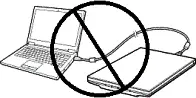
If you see the message ‘Found New Hardware’ on the screen, click Cancel and disconnect the USB cable. Then proceed to install the software. A common mistake when installing a driver is that you first connect the device to your computer using a USB cable and then install the driver. In this case, the operating system detects the connected device and installs its own driver, which may not work correctly or not work at all. However, some other devices may work fine with the driver installed by the operating system. Therefore, if there is a driver specially created for your device, then first start installing this driver and only then connect the device to the computer.

Software for Windows operating systems
Download scanner driver and software for Windows Windows 11, Windows 10 32-bit, Windows 10 64-bit, Windows 8.1 32-bit, Windows 8.1 64-bit, Windows 8 32-bit, Windows 8 64-bit, Windows 7 32-bit, Windows 7 64-bit |

Software for MAC operating systems
Download scanner driver and software for MAC macOS 26, macOS 15, macOS 14, macOS 13.x, macOS 12.x, macOS 11.x, macOS 10.15.x, macOS 10.14.x, macOS 10.13.x, macOS 10.12.x, Mac OS X 10.11.x, Mac OS X 10.10.x, Mac OS X 10.9.x, Mac OS X 10.8.x, Mac OS X 10.7.x |
Epson DS-575W II
Double-click the downloaded .exe file. It will be decompressed and the Setup screen will be displayed. Follow the instructions to install the software and perform the necessary settings. After installing this software, you will be able to scan and use all scanner functions. You don’t need any other software.
How to scan documents and photos.
The ‘Epson Scan’ is software for conveniently scanning photographs, documents, etc. In the Windows operating system, click the ‘Start’ button to find the shortcut for the ‘Epson Scan’ software. You can then use your computer mouse to drag this shortcut to your desktop.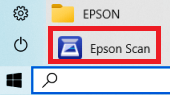
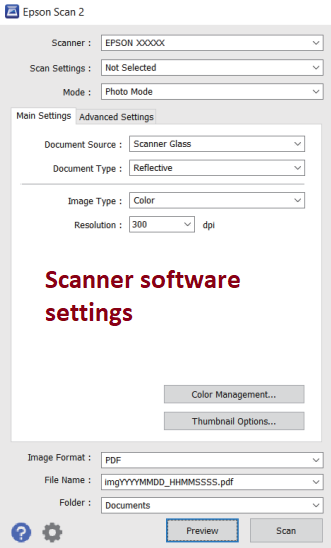 If you find it difficult to understand the settings of this software, then I offer you the easiest way to scan any documents and photos. To do this, use the ‘Photo Mode’ mode and you can scan any documents and photos. Many users of this software use ‘Photo Mode’ to scan documents or photos. If you need to change the location where the scanned image will be saved, then use ‘Folder’ for this. Recommended scanning quality: 300 dpi (suitable for scanning any documents and photos). The higher the quality, the longer the scan takes and the larger the file size. Save type ‘JPEG’ or ‘PNG’ is better for scanning. The quality of the scanned documents is good and there is no need to change other program settings.
Epson DS-575W II
Additional Scanner Software
Epson Document Capture Pro v3.2.2
Scanner software for operating systems: Windows 11, Windows 10, Windows 8, Windows 8.1, Windows 7 (64-bit / 32-bit)

(Epson Document Capture Pro v3.2.2)
The ‘Epson Document Capture Pro’ is software for conveniently scanning photographs, documents, etc. Install the software. In the Windows operating system, click the ‘Start’ button to find the shortcut for the ‘Epson Document Capture Pro’ software. You can then use your computer mouse to drag this shortcut to your desktop.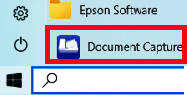 Epson Document Capture Pro is a software program developed by Epson that enables users to scan and manage documents using Epson scanners. It is designed to make the document scanning process more efficient by offering various powerful features and functions. The software supports various file formats, including PDF, JPEG, TIFF, and BMP. Epson Document Capture Pro offers advanced features such as auto-detection of document size, auto-cropping of scanned images, and automatic text recognition. It also supports the creation of custom scanning profiles, which allows you to configure the software to your specific needs. Overall, Epson Document Capture Pro is a powerful and user-friendly software that can help you streamline your document scanning and management workflow, ultimately increasing your productivity.
Epson DS-575W II
Important: The Epson Scan OCR Component, also downloadable from this page, is required for this version of Document Capture Pro.
EPSON Scan OCR Component v3.00.04
This component adds the following functionality: Create searchable PDFs with EPSON Scan, Epson Scan 2, ScanSmart and Document Capture Pro v1.02.00 or later. Convert scanned document to Microsoft Word (DOCX), Excel (XLSX) and PowerPoint (PPTX) documents with editable text using ScanSmart, Document Capture Pro v1.05.00, or later.
Epson DS-575W II
How to print and scan documents using a mobile phone or tablet.
This model is compatible with the Epson Smart Panel app, which allows you to perform printer or scanner operations easily from iOS and Android devices.

| Download iOS App |
 Download Android App Download Android App |


Leave a Reply