Last Updated on 17.11.2024 by DriverNew
 Operating systems: Windows 11, Windows 10, Windows 8, Windows 8.1, Windows 7, Windows Vista, Windows XP (64-bit / 32-bit)
Printer Model: Kyocera TASKalfa 4004i
Drivers for Kyocera TASKalfa 4004i printer and scanner. Several files are available for download on the official Kyocera website for this model, and it is not always clear which one you should choose. This article provides links to verified installation files from the official Kyocera website that contain the necessary drivers and software for the full operation of the device and usually do not cause installation problems. The article also includes instructions for the proper installation of the software for the Kyocera TASKalfa 4004i printer and scanner. If you have difficulties installing drivers or if the printer and scanner do not work properly after installation, read here about ways to solve such problems.
File name: Web installer (Windows only)
Download drivers and software for Windows (Web installer)
File size: 16.7 MB
You can download a web installer that makes it easy to install the driver utilities you need (Printer, Scanner and Fax Drivers).
Kyocera Printer Driver
For Kyocera printers in Windows 11, 10, 8, 8.1, and 7, the best option is usually to install the KX Universal Printer Driver. This is Kyocera’s main universal driver, which is listed on the official website as the recommended print driver with advanced features. It is convenient to use instead of other Kyocera universal drivers, such as KX v4 and Classic Universal Printer Driver, because it provides good compatibility, easy installation, and access to the main device features. If the goal is to set up printing quickly and without unnecessary complications, the first thing to download and install is the KX Universal Printer Driver.
You can download the latest version of this driver from the official website or by using the following direct link:

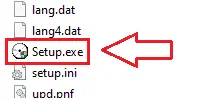
Installation is standard: download the ZIP archive, extract it to a separate folder, run Setup.exe as administrator, and follow the installation wizard prompts. If file name extensions are hidden in the folder and you cannot find Setup.exe, look for a file named Setup. It is the same file; Windows may simply have file extensions hidden.

If the program asks you to choose additional features during Express Install, for most users it is enough to enable printing a test page so you can immediately confirm that the driver is installed correctly and the printer is working. The other optional features are not required and can be configured later in Printer Properties if needed. If the device is connected over the network, it is usually more convenient to add it by IP address, because this often helps avoid automatic detection errors. After the installation is complete, it is a good idea to open Printer Properties in Windows, check the paper size and print quality, and set the device as the default printer if necessary.
One of the most common problems is that Windows does not detect the device automatically or installs it incorrectly. In that situation, it is better not to use automatic detection. Instead, run Setup.exe as administrator and, for a network connection, add the device by IP address. If the printer is installed but printing does not work correctly, some settings are unavailable, jobs are stuck in the queue, the device appears offline, or driver errors appear after a Windows update, remove the old driver, restart the computer, and reinstall the KX Universal Printer Driver. If that does not help, use this guide: How to Fix Problems That Cause the Printer or Scanner to Stop Working.
Scanner Driver
Software version: v. 3.0.5615 Kyocera TWAIN Driver. Drivers for scanning from TWAIN-enabled applications.
Download scanner driver for Windows
File size: 52 MB
Drivers for scanning from TWAIN-enabled applications. This software is for scanners: CS 2554ci, CS 3554ci, CS 4004i, CS 4054ci, CS 5004ci, CS 5054ci, CS 6004i, CS 6054ci, CS 7004i, CS 7054ci, TASKalfa 2554ci, 2554ci(J), TASKalfa 3554ci, 3554ci(J), TASKalfa 4004i, TASKalfa 4054ci, 4054ci(J), TASKalfa 5004i, 5004i(J), TASKalfa 5054ci, 5054ci(J), TASKalfa 6004i, 6004i(J), TASKalfa 6054ci, 6054ci(J), TASKalfa 7004i, 7004i(J), TASKalfa 7054ci, 7054ci(J).
Kyocera TASKalfa 4004i
You can scan using free Windows tools or the NAPS2 app.
Windows Scan is a free app for Windows 11, Windows 10, and Windows 8.1 that you can download from the Microsoft Store and use to scan documents and pictures.
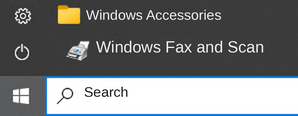
Windows Fax and Scan is a built-in app for Windows 10, 8.1, 8, and 7. To open it, click Start or use Windows Search. In the search box, type: Windows Fax and Scan.
NAPS2 is a free scanning app that lets you save files as PDF, TIFF, JPEG, or PNG and offers more flexible settings.
To learn more about these apps, which one to choose, and how to use them, read this article.
Important: These apps require a scanner driver. If a driver from the manufacturer is available for your model, it is best to install it first. If Windows has already installed a driver automatically and scanning works properly, reinstalling it is usually not necessary.
Download and install the driver Kyocera TASKalfa 4004i. This is a driver that will provide full functionality for your selected model.



Leave a Reply