Last Updated on 03.06.2020 by DriverNew
Download software for the device: 4 Ports PCI Express USB 3.0 Expansion Card
 Device model: FS-U4-Pro
Data Speed: 5Gbps
Power Supply: Feb Smart Self-Power Technology
Plug in Interface: PCI Express
Data Running Protocol: USB 3.0
USB 3.0 Interface: 4-Ports
System Reqiurements:
1. Plug and Play on Windows 10, 8.1, 8 (64-bit / 32-bit) and Windows Server 2012, 2012R2, 2016, 2019.
2. Need to Install Driver on Windows XP, Vista, 7 (64-bit / 32-bit), Windows Server 2003, 2003R2, 2008, 2008R2 (64-bit / 32-bit), NOT for MAC OS.
FebSmart 4 Ports USB 3.0 Super Fast 5Gbps PCI Express (PCIe) Expansion Card for Windows Server, XP, 7, Vista, 8, 8.1, 10 PCs-Build in Self-Powered Technology-No Need Additional Power Supply (FS-U4-Pro)
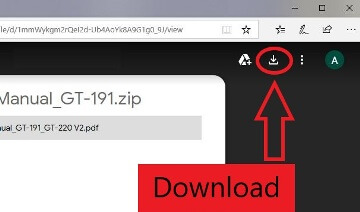
How to download files located on Google Drive:
 This is a driver that will allow you to use all the functions of your device. The version of this driver is located on the CD-ROM that is included with the device.
Product Description
4 Ports USB 3.0 Superspeed 5Gbps PCI Express USB Controller Card
FebSmart FS-U4-Pro allow users add four USB 3.0 super fast 5Gbps ports on desktop computers for video, audio, photos or files transfer. Build in Self-Powered Technology for high power-consuming data devices. It is a perfect choice for Cameras, VR system, Flash Drive, USB SSD/HDD Enclosures and more USB device.
Product Advantage:
1. Add four Ports USB 3.0 for your desktop computer by PCI Express slot-Each port 5Gbps max data transfer speed for fast connection.
2. Bluid in FebSmart Self-Powered Technology provide sufficient power(8A max) supply for USB data device. Experience fast data transfer all the time.Running High power-consuming device simultaneously in all USB ports now.
3. Internal USB card from mother board though a PCI Express slot-Ensure stable connection and lost few data transfer speed. Do not have lost connection issue like external USB HUB does.
Package List:1XFS-U4-Pro 1XUser Manual 1XMini CD 1x Mounting Screw

Advance FebSmart Self-Powered Technology
FebSmart Self-Powered Technology is a new solution to add more power supply on USB expansion cards. The old version PCI Express USB cards need to plug a power cable from desktop computers power control center. Even added on additional power, sometimes it still lack power when running few high power-consuming devices simultaneously such as hard drive disks. PCI Express Slot can provide 75W max almost 12V/6.25A power. We add a voltage transformer on USB cards get 5V/15A max power. Then we added power modules on each USB ports distribute current to each port 5V/2A. Most of the high power-consuming devices just need 4~8W which means this USB expansion card can be running few the high power-consuming device simultaneously in high speed. To protect data device and users data we build safety electric circuit protector on each each port. Do not worry data loss or burning the data device now. Add super fast USB 3.0 Controller Card on PCs. Choose More Stable Fast and Safe data Connection with FebSmart.


Leave a Reply