Last Updated on 13.11.2024 by DriverNew
 Drivers and software for operating systems Windows 11, Windows 10, Windows 8, Windows 8.1, Windows 7, Windows Vista, Windows XP (64-bit / 32-bit)
Driver and Software for Brother DCP-T300
Drivers for Brother DCP-T300 printer and scanner. Several files are available for download on the official Brother website for this model, and it is not always clear which one you should choose. This article provides links to verified installation files from the official Brother website that contain the necessary drivers and software for the full operation of the device and usually do not cause installation problems. The article also includes instructions for the proper installation of the software for the Brother DCP-T300 printer.
How to install the printer driver correctly: Do not connect the printer to the computer. Start installing the software first. During the installation process, a message will appear on the monitor informing you when to connect the printer to your computer.
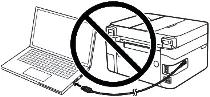
If you see the message ‘Found New Hardware’ on the screen, click Cancel and disconnect the USB cable. Then proceed to install the software. A common mistake when installing a driver is that you first connect the device to your computer using a USB cable and then install the driver. In this case, the operating system detects the connected device and installs its own driver, which may not work correctly or not work at all. However, some other devices may work fine with the driver installed by the operating system. Therefore, if there is a driver specially created for your device, then first start installing this driver and only then connect the device to the computer.

Software for Windows operating systems

Driver and software for Windows Download
Brother DCP-T300 Printer and Scanner Drivers
This is a driver that will allow you to use all the functions of your device. The version of this driver is located on the CD-ROM that is included with the device.
Driver and Software for Brother DCP-T300
The printer or scanner driver in the Windows operating system may be displayed in a foreign language. How do I change the language of the printer or scanner driver in the Windows operating system?
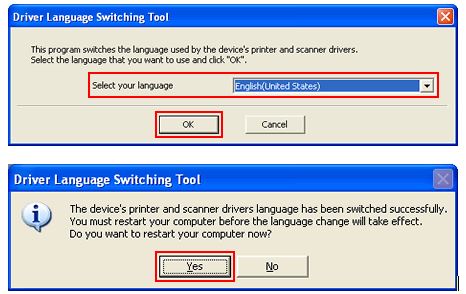
You can switch the language of the printer driver (except the BR-Script driver or Generic driver) and scanner driver by using the Driver Language Switching Tool.
Click here to download the Driver Language Switching Tool.
Open the “drvlangchg” folder and double click “DrvLangChg”.
Choose the language you want to switch to and click OK.
When the completion message appears, click Yes, and restart your computer.


Leave a Reply