Last Updated on 25.03.2026 by DriverNew
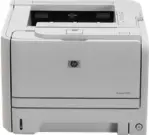 This guide explains how to install the HP LaserJet P2035 printer driver in Windows 11, Windows 10, Windows 8.1, Windows 8, and Windows 7.
Important: On the HP page, Windows 11 is not listed as a separate supported operating system for this model. However, you can still use this package as the latest available HP driver if automatic installation through Windows did not work.
Where to Download the Driver
Download the driver from the official HP website
- Download the file (ljP2035-gdi-pnp-win64-en.exe) for Windows 11, 10, 8.1, 8, 7, Vista, and XP (64-bit)
- Download the file (ljP2035-gdi-pnp-win32-en.exe) for Windows 10, 8.1, 8, 7, Vista, and XP (32-bit)
Which File to Choose
If you have 64-bit Windows, download ljP2035-gdi-pnp-win64-en.exe. If you have 32-bit Windows, download ljP2035-gdi-pnp-win32-en.exe.
If you are not sure which version you have, open your PC properties and check the System type line.
Before You Begin
- If you are installing the driver using the EXE file, do not connect the USB cable in advance.
- If the printer was installed before, remove the old printer from Windows before reinstalling it.
- Connect the printer directly to the computer, without a USB hub or docking station.
Installation in Windows 11
In Windows 11, this printer can usually be installed, but the older HP software may work inconsistently. If the standard installation does not work, it is better to use the built-in Windows tools.
- Download ljP2035-gdi-pnp-win64-en.exe.
- Do not connect the printer before starting the installation.
- Right-click the file and select Run as administrator.
- If the installer asks you to connect the printer, only then connect the USB cable.
- Wait for the installation to finish.
- Open Settings > Bluetooth & devices > Printers & scanners.
- Check whether the printer appears in the list.
If the printer does not appear or does not print:
- Open Settings > Bluetooth & devices > Printers & scanners.
- Click Add device.
- If Windows finds the printer, complete the installation.
- After that, open Windows Update and install all available updates, including Optional updates if they are available.
If the standard installation did not help: remove the old printer entry, restart your computer, and add the device again. If the problem continues, use manual driver installation through the Windows wizard and point it to the driver from the extracted HP package. For this model, this is still a working fallback method in Windows 11.
Manual installation helps if:
- Windows does not find the driver automatically;
- the printer is not detected;
- the device appears as an unknown device;
Setup.exedoes not start or does not finish the installation;- the printer does not print after a standard installation.
Extract the Driver to a Separate Folder
How to get the INF file from the EXE.
- Install 7-Zip or WinRAR if it is not already installed.
- Right-click the EXE file and choose 7-Zip/WinRAR > Extract.
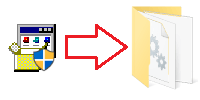
You should now have a folder with the driver files. Inside it, find the file HP2030.INF.
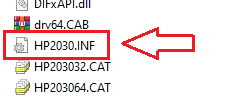
This is the file used for manual installation.
If file name extensions are hidden and you cannot find HP2030.INF, look for a file named HP2030. It is the same file. Windows may simply be set to hide file name extensions.
This video shows how to manually install a driver using “Have Disk…”
Installation in Windows 10
In Windows 10, the driver usually installs more easily than in Windows 11. However, the older HP installer may sometimes close too early or end with an error.
- Download the correct driver version: 64-bit or 32-bit.
- Do not connect the printer before starting the installation.
- Run the driver file as administrator.
- Connect the USB cable only when the installer prompts you.
- Wait for the installation to finish.
- Open Printers & scanners and make sure the printer appears in the list.
If the installer does nothing or the installation ends with an error, remove the old printer, restart your computer, and try adding the printer through Windows. If necessary, use manual driver installation through the Windows wizard.
Installation in Windows 8.1
In Windows 8.1, it is often better to use the built-in Windows driver instead of the older HP EXE file. So if the standard installation does not work, go straight to adding the printer through Windows.
- Connect the printer to the computer.
- Open Devices and Printers.
- Click Add a printer.
- Wait while Windows searches for the device.
- If the printer is not found, run Windows Update in the installation wizard.
- Select HP LaserJet P2035 from the list and complete the installation.
If you want to try the HP EXE file, you can, but in Windows 8.1 the built-in Windows driver is often the more reliable solution.
Installation in Windows 8
In Windows 8, the older HP package usually works normally.
- Download the correct driver version.
- Do not connect the printer in advance.
- Run the EXE file.
- Connect the USB cable only when the installer prompts you.
- After installation, print a test page.
If the installation does not complete, add the printer through Windows and update the driver list through Windows Update.
Installation in Windows 7
In Windows 7, this printer usually installs without major problems.
- Download the correct driver version.
- Disconnect the printer’s USB cable.
- Run the installer.
- Connect the printer when the installer asks you to do so.
- Check whether the printer appears in the device list.
What to Do If the Printer Does Not Install
- Make sure you downloaded the correct driver version: 32-bit or 64-bit.
- Connect the USB cable only when the installer prompts you.
- Remove the old printer before reinstalling.
- Restart your computer and try again.
- Use installation through Windows if the older HP software does not work.
- If necessary, use manual driver installation from the extracted package.
Summary
For Windows 7 and Windows 8, it is usually enough to download the correct EXE file and complete a standard installation. For Windows 8.1, the built-in Windows driver is often a better option. For Windows 11 and sometimes Windows 10, it helps to know the fallback method: remove the old printer, add the device again, and use manual driver installation through Windows if the standard HP installer does not work.



Leave a Reply