Last Updated on 03.02.2024 by DriverNew
 Drivers and software for operating systems Windows 11, Windows 10, Windows 8, Windows 8.1, Windows 7 (64-bit / 32-bit)
Printer Model: Canon PIXMA G1410
These are the drivers and software that are included on the CD that came with the printer. How to install the printer driver correctly: Do not connect the printer to the computer. Start installing the software first. During the installation process, a message will appear on the monitor informing you when to connect the printer to your computer.
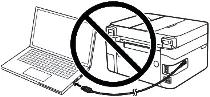 If you see the message ‘Found New Hardware’ on the screen, click Cancel and disconnect the USB cable. Then proceed to install the software. A common mistake when installing a driver is that you first connect the device to your computer using a USB cable and then install the driver. In this case, the operating system detects the connected device and installs its own driver, which may not work correctly or not work at all. However, some other devices may work fine with the driver installed by the operating system. Therefore, if there is a driver specially created for your device, then first start installing this driver and only then connect the device to the computer.

Software for Windows operating systems

Download drivers and software for Windows
File version: 1.02. File Size: 31 MB
Printer Model: Canon PIXMA G1410
Full Driver and Software Package (Windows)
Double-click the downloaded .exe file. It will be decompressed and the Setup screen will be displayed. Follow the instructions to install the software and perform the necessary settings.

Additional software: “My Printer” is a utility software that allows you to access and easily change the settings of your printer such as the paper source. Installation of My Printer is optional, however it is recommended to make the most out of your printer. My Printer can diagnose if there are any issues with the driver setup and repair any issues that are found. You can also access troubleshooting information that can help you to solve problems such as ink smudging. My Printer is included in the initial software setup for your printer.
Canon PIXMA G1410
My Image Garden. Ver. 3.6.4
Scanner and printer software – ‘My Image Garden’
This application software allows you to scan, save and print photos and documents. You can also edit images, or attach images to e-mail using this application software.
File version: 3.6.4. File Size: 294 MB
Double-click the downloaded .exe file. It will be decompressed and the Setup screen will be displayed. Follow the instructions to install the software and perform the necessary settings.
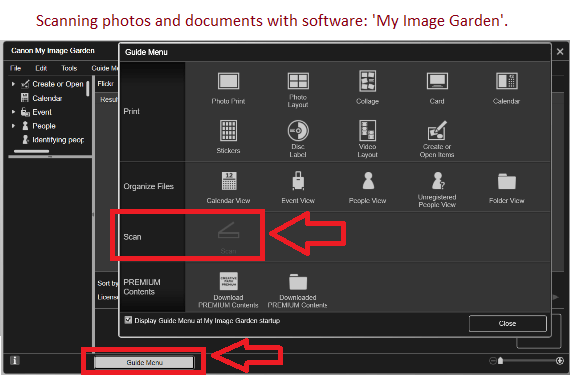
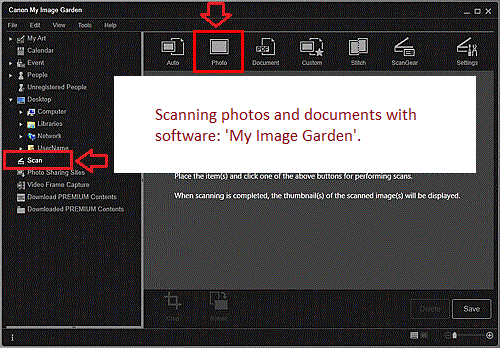
Scanning photos and documents with software: ‘My Image Garden’.
 Canon PIXMA G1410


Leave a Reply