Last Updated on 12.06.2025 by DriverNew
 Drivers and software for operating systems Windows 11, Windows 10, Windows 8, Windows 8.1, Windows 7 (64-bit / 32-bit)
Printer Model: HP Officejet 4500 All-in-One Printer G510a-f
Installing your HP printer on a Windows computer is easy thanks to the built-in drivers provided by the operating system. These drivers provide the necessary printing and scanning functions without the need to install additional software. Below is a simple guide to help you install your HP printer via USB and Wi-Fi connections.
Installing the HP printer via USB port
1. Prepare the printer and computer. Make sure the printer is turned on and the computer is connected to the Internet.
2. Connect the printer directly to the computer using a USB cable.
3. Automatically install the driver. Windows will attempt to detect the new hardware and automatically install the necessary drivers.
HP Officejet 4500 All-in-One Printer G510a-f
You can scan using free Windows tools or the NAPS2 app.
Windows Scan is a free app for Windows 11, Windows 10, and Windows 8.1 that you can download from the Microsoft Store and use to scan documents and pictures.
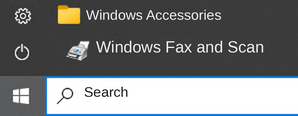
Windows Fax and Scan is a built-in app for Windows 10, 8.1, 8, and 7. To open it, click Start or use Windows Search. In the search box, type: Windows Fax and Scan.
NAPS2 is a free scanning app that lets you save files as PDF, TIFF, JPEG, or PNG and offers more flexible settings.
To learn more about these apps, which one to choose, and how to use them, read this article.
Important: These apps require a scanner driver. If a driver from the manufacturer is available for your model, it is best to install it first. If Windows has already installed a driver automatically and scanning works properly, reinstalling it is usually not necessary.



Leave a Reply