Last Updated on 06.09.2023 by DriverNew
 Operating system: Windows 11, Windows 10, Windows 8, Windows 8.1, Windows 7, Windows Vista, Windows XP (64-bit / 32-bit)
Model: Xerox DocuColor 12 Printer.
Filename: UNIV_5.548.8.0_PrintSetup.exe (Universal Printer Driver)
Version 5.548.8.0 (Jun 30, 2017).
Xerox Printer Driver Download (20,9 MB)
This version of the Xerox Global Printer Driver (Universal Printer Driver) contains all drivers (PostScript, PCL5 and PCL6) and automatically downloads and installs on your system.
If technical or security issues prevent you from downloading this version, try downloading and installing the PostScript, PCL5 and PCL6 drivers separately:
Printer Driver for Windows 11, 10, 8, 7, Vista (64-bit):
- PCL6 64-bit Driver – Download and Install (recommended)
- PCL5 64-bit Driver – Download and Install
- PostScript 64-bit Driver – Download and Install
Printer Driver for Windows 11, 10, 8, 7, Vista (32-bit):
- PCL6 32-bit Driver – Download and Install (recommended)
- PCL5 32-bit Driver – Download and Install
- PostScript 32-bit Driver – Download and Install
Driver for Windows XP Download (18,3 MB)
Supported Languages: Arabic Brazilian Portuguese Bulgarian Catalan Chinese (Simplified) Chinese (Traditional) Czech Danish Dutch English (Global) English (N. America) Finnish French French Canadian German Greek Hebrew Hungarian Italian Japanese Korean Norwegian Polish Portuguese Romanian Russian Spanish Swedish Turkish Ukrainian
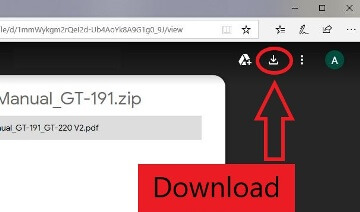
How to download files located on Google Drive:
Printer Driver for Xerox DocuColor 12 Printer. This is a driver that will provide full functionality for your selected model.


Leave a Reply