Last Updated on 09.01.2024 by DriverNew
 Drivers and software for operating systems Windows 11, Windows 10, Windows 8, Windows 8.1, Windows 7 (64-bit / 32-bit)
Printer Model: Canon PIXMA TS9155
How to install the printer driver correctly: Do not connect the printer to the computer. Start installing the software first. During the installation process, a message will appear on the monitor informing you when to connect the printer to your computer.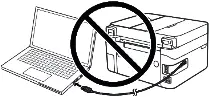 If you see the message ‘Found New Hardware’ on the screen, click Cancel and disconnect the USB cable. Then proceed to install the software. A common mistake when installing a driver is that you first connect the device to your computer using a USB cable and then install the driver. In this case, the operating system detects the connected device and installs its own driver, which may not work correctly or not work at all. However, some other devices may work fine with the driver installed by the operating system. Therefore, if there is a driver specially created for your device, then first start installing this driver and only then connect the device to the computer. If you installed the driver incorrectly, uninstall the driver, restart your computer, and reinstall the software. Be sure to restart your computer after installing and after uninstalling the drivers.
Software for Windows operating systems

Download drivers and software for Windows
File version: 1.03. File Size: 102 MB
Printer Model: Canon PIXMA TS9155
Full Driver and Software Package (Windows)
This file will download and install the drivers, application or manual you need to set up the full functionality of your product.
Double-click the downloaded .exe file. It will be decompressed and the Setup screen will be displayed. Follow the instructions to install the software and perform the necessary settings.

Canon PIXMA TS9155
 Important information for modern ARM laptop owners!
If your computer or laptop runs on the Windows 11 ARM operating system (for example, based on the latest Qualcomm Snapdragon X Elite, Snapdragon X Plus, or similar processors), you will not be able to install standard x86/x64 drivers from Canon. Due to the architectural features of the system, a classic launch of the installation file via a USB cable for the PIXMA and MAXIFY lineups leads to compatibility errors.
Nevertheless, wireless models can be successfully configured for basic printing without using official Canon software. How to bypass system limitations, start printing via Wi-Fi, and organize free document scanning is described in detail in our separate guide. Follow the link to read the material: Step-by-step instructions for installing Canon PIXMA/MAXIFY on Windows 11 ARM.
How to scan documents and photos
The ‘IJ Scan Utility’ is software for conveniently scanning photographs, documents, etc. In the Windows operating system, click the ‘Start’ button to find the shortcut for the ‘IJ Scan Utility’ software. You can then use your computer mouse to drag this shortcut to your desktop.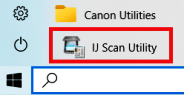
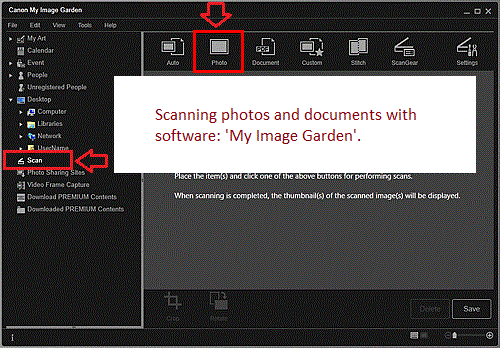
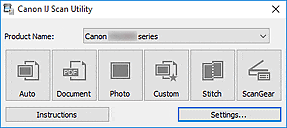 If you find it difficult to understand the settings of this software, then I offer you the easiest way to scan any documents and photos. To do this, use one button ‘Photo’. By clicking on this button, you can scan any documents and photos. The scanned document will be saved to your computer. The quality of the scanned documents is good, so you do not need to change the software settings. Many users of this software use one ‘Photo’ button to scan documents or photos. If you need to change the location where the scanned image will be saved or change other scanner settings, then use the “Settings” button for this.
Printer Model: Canon PIXMA TS9155
My Image Garden. Ver. 3.6.4
Scanner and printer software – ‘My Image Garden’
This application software allows you to scan, save and print photos and documents. You can also edit images, or attach images to e-mail using this application software.
File version: 3.6.4. File Size: 294 MB
Double-click the downloaded .exe file. It will be decompressed and the Setup screen will be displayed. Follow the instructions to install the software and perform the necessary settings.
Scanning photos and documents with software: ‘My Image Garden’.
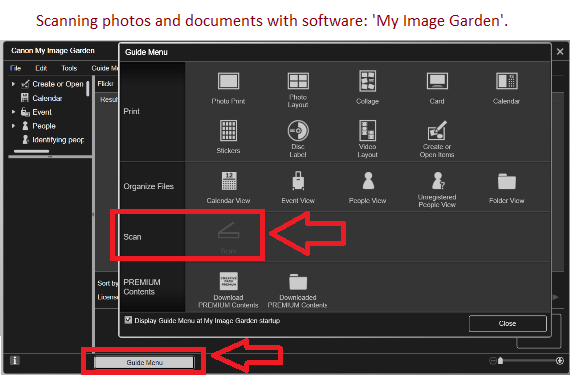
Canon PIXMA TS9155
If you have problems using this software, you can use the easier way to scan documents and photos.
You can scan using free Windows tools or the NAPS2 app.
Windows Scan is a free app for Windows 11, Windows 10, and Windows 8.1 that you can download from the Microsoft Store and use to scan documents and pictures.
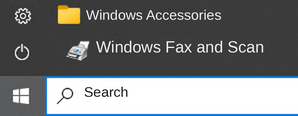
Windows Fax and Scan is a built-in app for Windows 10, 8.1, 8, and 7. To open it, click Start or use Windows Search. In the search box, type: Windows Fax and Scan.
NAPS2 is a free scanning app that lets you save files as PDF, TIFF, JPEG, or PNG and offers more flexible settings.
To learn more about these apps, which one to choose, and how to use them, read this article.
Important: These apps require a scanner driver. If a driver from the manufacturer is available for your model, it is best to install it first. If Windows has already installed a driver automatically and scanning works properly, reinstalling it is usually not necessary.



Leave a Reply