Last Updated on 02.10.2023 by DriverNew
 Drivers and software for operating systems Windows 11, Windows 10 (64-bit / 32-bit)
Printer Model: Xerox WorkCentre 5790
This software is designed to install printer and scanner drivers and other software to provide full printer and scanner functionality.

Software for Windows operating systems
Download drivers and software for Windows Operating systems: Windows 11, Windows 10 (32-bit), Windows 10 (64-bit) The Xerox Smart Start – This software is designed to install printer and scanner drivers and other software to provide full printer and scanner functionality. You don’t need any other software. |

Software for MAC operating systems
Download drivers and software for MAC Xerox Print and Scan Experience – Mac App Store Operating systems: macOS 14.x, macOS 13.x, macOS 12.x Downloads and installs the Xerox Print and Scan (TWAIN/ICA) Drivers for macOS. |
Xerox WorkCentre 5790
Installing software for the Windows operating system
Double-click the downloaded .exe file. It will be decompressed and the Setup screen will be displayed. Follow the instructions to install the software and perform the necessary settings. ‘Xerox Smart Start’ software analyzes your system configuration and installs the appropriate drivers for printing and scanning.
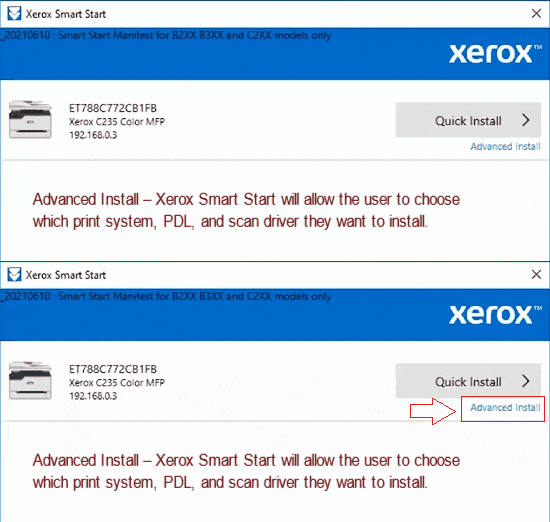 The user can choose between two different kinds of installations in Xerox Smart Start. Quick Install – Xerox Smart Start will automatically install drivers based on the user’s operating system and printer model. Quick install does not install scan drivers. Advanced Install – Xerox Smart Start will allow the user to choose which print system, PDL, and scan driver they want to install. Xerox Smart Start will recommend which options provide the best print experience.
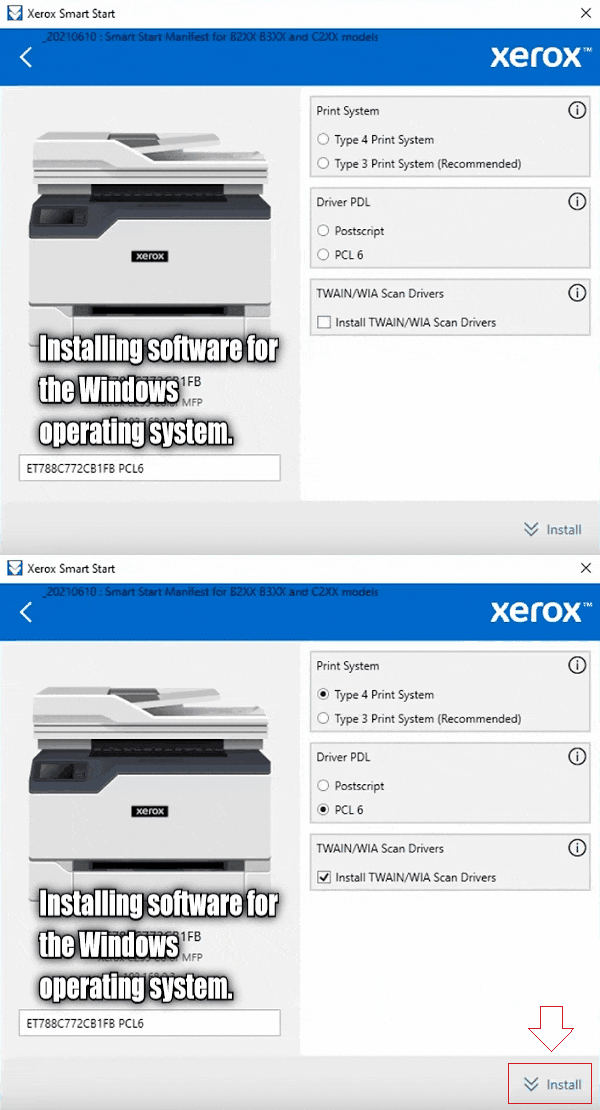 Double-click the downloaded XeroxSmartStart.exe file. Agree to the EULA. Xerox Smart Start will scan for printers. Select the printer you want to install and choose either Quick Install or Advanced Install (If you select Advanced Install then Xerox Smart Start will present you with a list of options: Print System, Driver PDL, Scanner Driver Options, and Printer Name. Once you have selected the options you want, select Install to start the installation process). If Xerox Smart Start did not find the printer you want to install select Don’t See Your Printer (Enter the printer’s hostname or IP address and select Continue. If Xerox Smart Start detects your printer it will take you to the Advanced Install screen). When the installation finishes Xerox Smart Start will display a confirmation screen. You can Install Another Printer or exit by selecting Done. You also have the option to print a test page. After installing this software, you will be able to print, scan and use all printer features. You don’t need any other software.
Xerox WorkCentre 5790
Software for printing and scanning documents and photos.
‘Xerox Print Experience’ is software for your printer and scanner. On a Windows operating system, click the Start button to find the shortcut to the Xerox Print Experience software. You can then use your computer mouse to drag this shortcut onto your desktop.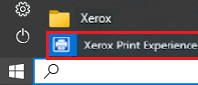
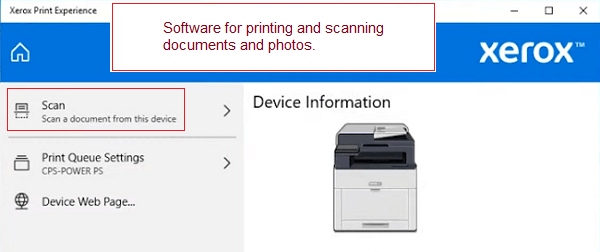
Software settings for scanning documents and photos.
If you need to change the location where the scanned image will be saved, then use ‘Options’ for this. Recommended scanning quality: 300 dpi (suitable for scanning any documents and photos). The higher the quality, the longer the scan takes and the larger the file size. The ‘JPEG’ or ‘JPG’ save type is better suited for scanning. The quality of scanned documents is good.
Xerox WorkCentre 5790
Additional software for printing and scanning documents and photos for the Windows operating system
Free software ‘Xerox Print and Scan Experience’ which you can download from the Microsoft Store.
Software for Windows operating systems

Download ‘Xerox Print and Scan Experience’ software
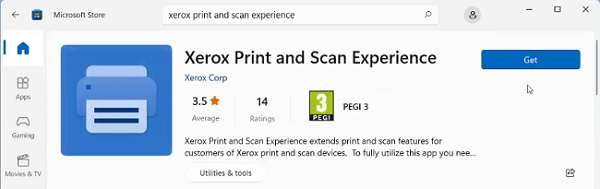
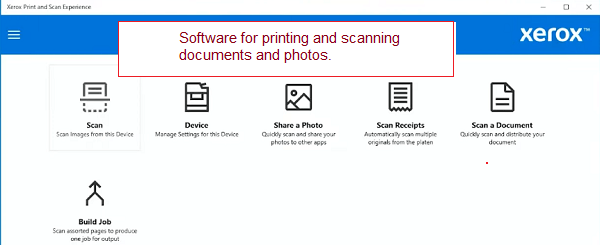 The ‘Xerox Print and Scan Experience’ app enhances the printing and scanning functionality for Xerox printer and scanner users. To fully use this application, you need a Xerox device and a Xerox Type 4 printer driver or an IPP or ‘Universal Print’ connection.
Xerox WorkCentre 5790
Additional software for printing and scanning documents and photos for the Mac operating system
Free software ‘Xerox Print and Scan Experience’ which you can download from the Mac App Store.
Software for MAC operating systems
Download ‘Xerox Print and Scan Experience’ software
The Xerox Print and Scan Experience App helps you access the printing and scanning functionality of Xerox printers and provides unique productivity tools for efficiency. Xerox Print and Scan Experience Application provides easy access to various printing and scanning features of the supported Xerox devices from the convenience of a Mac application.
Xerox WorkCentre 5790
If you have problems using this software, you can use the easier way to scan documents and photos.
You can scan using free Windows tools or the NAPS2 app.
Windows Scan is a free app for Windows 11, Windows 10, and Windows 8.1 that you can download from the Microsoft Store and use to scan documents and pictures.
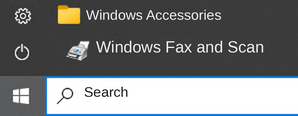
Windows Fax and Scan is a built-in app for Windows 10, 8.1, 8, and 7. To open it, click Start or use Windows Search. In the search box, type: Windows Fax and Scan.
NAPS2 is a free scanning app that lets you save files as PDF, TIFF, JPEG, or PNG and offers more flexible settings.
To learn more about these apps, which one to choose, and how to use them, read this article.
Important: These apps require a scanner driver. If a driver from the manufacturer is available for your model, it is best to install it first. If Windows has already installed a driver automatically and scanning works properly, reinstalling it is usually not necessary.


Leave a Reply