Last Updated on 12.04.2017 by DriverNew
 Driver for Windows 11, Windows 10, Windows 8, Windows 8.1, Windows 7, Windows Vista (64-bit / 32-bit)
Model: Ricoh MP 2000
In this article, you will find complete instructions on how to download a printer driver, install it correctly on your computer, and resolve any issues that may arise during installation or while using the printer.
Downloading the printer driver
There are several versions of the driver for each operating system, and many users are unsure which one to choose. To simplify the task, below are links to the most suitable driver versions for each operating system. These drivers work correctly and allow you to use all the printer’s features. Printer Driver for Operating Systems: Windows 11, Windows 10 (This driver is recommended for installation).
Download Printer Driver for Windows 11, Windows 10 (64-bit)
Download Printer Driver for Windows 10 (32-bit)
Printer Driver for Operating Systems: Windows 10, Windows 8, Windows 8.1, Windows 7, Windows Vista.
Download Printer Driver for Windows 10, 8 / 8.1
Download Printer Driver for Windows 7, Vista
Install the printer driver on Windows
Extract the driver
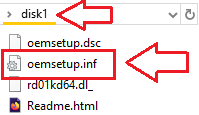
Open that folder and confirm you can see: ……\disk1\oemsetup.inf. Keep this window open — you’ll point Windows to this file.
Connect and power on the printer
Plug the printer into your PC with USB. Turn the printer On and wait ~10–20 seconds. If Windows shows “Driver unavailable,” continue — the steps below will fix it.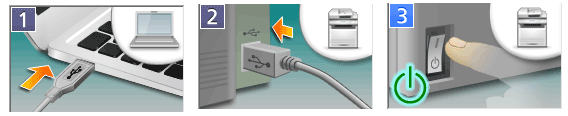
Open the classic Add-Printer wizard
Press Win + R, type control, press Enter to open Control Panel. Go to Hardware and Sound → Devices and Printers. Click Add a printer. If your printer isn’t listed, click The printer that I want isn’t listed.
Choose manual setup
Select Add a local printer or network printer with manual settings → Next. On Choose a printer port, select Use an existing port → pick USB001 (Virtual printer port for USB) → Next. (If printing doesn’t work later, you can switch to USB002 in Printer Properties → Ports.)
Install the printer driver with Have Disk
On Install the printer driver, click Have Disk… → Browse…. Navigate to the extracted folder and select: ……\disk1\oemsetup.inf → Open → OK. Select (file name) when it appears → Next. If asked to replace an existing driver, choose Replace the current driver → Next. Name the printer (write any name) → Next → Finish. Right-click your new printer → Printer properties → Print Test Page.
This video shows you how to install a printer driver on a Windows operating system.
If you don’t see file name extensions (.INF) when you view files in File Explorer
For Windows 10 operating system: If you don’t see the file extension (.inf): 1. In File Explorer, select “View” on the menu bar. 2. Click to enable “File Name Extensions”. For Windows 11 operating system: If you don’t see file name extensions (.INF) when you view files in File Explorer: In the search box on the taskbar, type file explorer, and in the search results, select File Explorer. In File Explorer, select View → Show → File name extensions.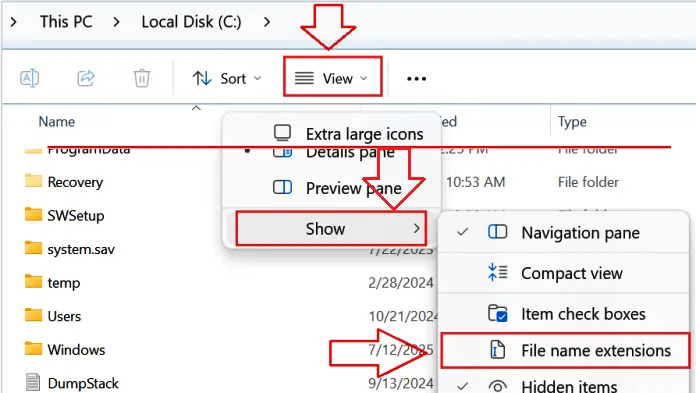
Quick fixes (only if it doesn’t print first try)
No print / “Offline”:
Right-click the printer → Printer properties → Ports → switch between USB001 and USB002 → Apply → test again.
Model not listed when browsing:
Make sure you selected oemsetup.inf inside the …\disk1\ folder.
Print Spooler hiccup:
Press Win + R → type services.msc → Enter → double-click Print Spooler → Restart → try a test page.
Why we recommend only this method
Right-clicking an .INF file to “Install” may add files to Windows, but it often doesn’t link the CAPT driver to the correct USB virtual port on Windows. The Have Disk method above sets everything up properly in one pass and is the most reliable approach for this printer.
Important information for owners of modern ARM laptops!
If you use a laptop with Windows 11 on an ARM processor, a regular Ricoh, Savin, Lanier, infotec, or Gestetner driver for Windows 11 x64 may not install or may work incorrectly. This applies, for example, to some modern Snapdragon-based laptops. In this case, the problem is usually not with the printer, cable, or driver file, but with the incompatibility of the classic driver with Windows 11 ARM.
For ARM laptops, you usually need to use not an old x64 driver, but a network connection, adding the printer through Windows, Mopria/IPP, or RICOH Print Support Application. Read more about the causes of the problem and possible solutions in a separate guide: why a Ricoh, Savin, Lanier, infotec, or Gestetner printer or MFP does not work on an ARM laptop with Windows 11 and how to fix it.
Scanner Driver for Operating Systems: Windows (for Multifunction Printers).
Download Scanner Driver for Windows (USB TWAIN DRIVER)
Download Scanner Driver for Windows (Network Twain Driver)
If you have problems using this software, you can use the easier way to scan documents and photos.
You can scan using free Windows tools or the NAPS2 app.
Windows Scan is a free app for Windows 11, Windows 10, and Windows 8.1 that you can download from the Microsoft Store and use to scan documents and pictures.
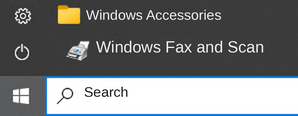
Windows Fax and Scan is a built-in app for Windows 10, 8.1, 8, and 7. To open it, click Start or use Windows Search. In the search box, type: Windows Fax and Scan.
NAPS2 is a free scanning app that lets you save files as PDF, TIFF, JPEG, or PNG and offers more flexible settings.
To learn more about these apps, which one to choose, and how to use them, read this article.
Important: These apps require a scanner driver. If a driver from the manufacturer is available for your model, it is best to install it first. If Windows has already installed a driver automatically and scanning works properly, reinstalling it is usually not necessary.
Driver for Ricoh MP 2000. This is a driver that will provide full functionality for your selected model.



Leave a Reply