Last Updated on 06.08.2023 by DriverNew
 Drivers and software for operating systems Windows 11, Windows 10, Windows 8, Windows 8.1, Windows 7 (64-bit / 32-bit)
Printer Model: HP LaserJet Pro M17a
These are the drivers and software that are included on the CD that came with the printer.

This software is for installing printer drivers and other software to provide full printer functionality.
How to install the printer driver correctly: Do not connect the printer to the computer. Start installing the software first. During the installation process, a message will appear on the monitor informing you when to connect the printer to your computer.
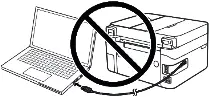
If you see the message ‘Found New Hardware’ on the screen, click Cancel and disconnect the USB cable. Then proceed to install the software. A common mistake when installing a driver is that you first connect the device to your computer using a USB cable and then install the driver. In this case, the operating system detects the connected device and installs its own driver, which may not work correctly or not work at all. However, some other devices may work fine with the driver installed by the operating system. Therefore, if there is a driver specially created for your device, then first start installing this driver and only then connect the device to the computer.

Software for Windows operating systems
Download drivers and software for Windows Operating systems: Windows 11, Windows 10 (32-bit), Windows 10 (64-bit), Windows 8.1 (32-bit), Windows 8.1 (64-bit), Windows 8 (32-bit), Windows 8 (64-bit), Windows 7 (32-bit), Windows 7 (64-bit) Software that includes the driver and everything you need to install and use your HP printer. |

Software for MAC operating systems
Download drivers and software for MAC Operating systems: Mac OS X 10.10, Mac OS X 10.11, Mac OS X 10.12, Mac OS X 10.9, macOS 10.13, macOS 10.14, macOS 10.15, macOS 11, macOS 12, macOS 13 HP Easy Start is software for downloading and installing the latest drivers for printers, scanners, and other software. |

HP LaserJet Pro M17a
Double-click the downloaded .exe file. It will be decompressed and the Setup screen will be displayed. Follow the instructions to install the software and perform the necessary settings.

Important information for owners of modern ARM laptops!
If you are installing an HP printer or MFP on a Windows 11 ARM laptop, for example on a device with a Qualcomm Snapdragon, Snapdragon X, or Microsoft SQ processor, a regular driver for Windows x64 may not be suitable. The HP installer may start, but the print or scan driver may not install. As a result, Windows may show the “Driver unavailable” message, the printer may not work over USB, and on an MFP, printing may work while scanning does not.
For such devices, it is often better to use a network connection over Wi-Fi or Ethernet, add the printer by IP address, use the standard Microsoft IPP Class Driver, Mopria, or HP app if it supports your model. Read more about the specifics of installing HP printers and MFPs on Windows 11 ARM in a separate guide: Why an HP Printer or MFP Does Not Work on a Windows 11 ARM Laptop and How to Fix It.
After installing this software, you will be able to print and use all printer features. You don’t need any other software.
HP LaserJet Pro M17a
This is original software. Software installation is simple and fast. Start installing the software. During the installation process, a message will appear on the monitor informing you when to connect the printer to your computer. Therefore, prepare the printer for connection to the computer in advance.


Leave a Reply