Last Updated on 17.01.2022 by DriverNew
 Operating systems: Windows 11, Windows 10, Windows 8, Windows 8.1, Windows 7, Windows Vista, Windows XP (64-bit / 32-bit)
 Model: NVIDIA GeForce 6800 GS/XT (Video card for Desktop PC)
Drivers that are included with the video card. For many users, installing these drivers is enough to use the graphics card.
Download video card driver for Windows operating system
It is recommended that you use the Windows operating system to download or update video card drivers. This is the safest and most reliable way to download or update drivers. The Windows operating system itself downloads and installs new verified drivers.
How to update the video card driver in the Windows operating system.
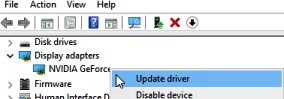
Open ‘Device Manager’. To do this, in the Windows search bar, write: ‘Device Manager’. Right-click on the name of the video card and in the tab that opens, click ‘Update Driver’.
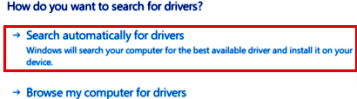
 In the new tab that opens, click ‘Search automatically for Drivers’. The Windows operating system will find and install the new graphics card driver.
 If you need the latest graphics card driver that has not yet been fully tested for compatibility with the Windows operating system, you can download it from the NVIDIA website – https://www.nvidia.com/en-gb/geforce/drivers/
Optional GeForce Experience software.
GeForce Experience is a software application developed by NVIDIA that allows users to optimize their gaming experience on a PC equipped with a NVIDIA graphics card. To install GeForce Experience, you can download the software from the NVIDIA website (https://www.nvidia.com/en-us/geforce/geforce-experience/). Once the download is complete, open the installer and follow the prompts to install the software.
Download GeForce Experience Software
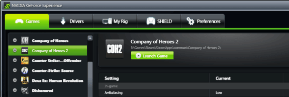 Once installed, GeForce Experience can automatically optimize game settings for your specific system configuration, as well as provide drivers updates, and record and share gameplay footage. Additionally, it also offers in-game overlay for access to features such as recording and capturing screenshots, and an integrated game library for easy access to all of your games.
GeForce 6800 GS/XT Driver Download
 Download and install the NVIDIA GeForce graphics driver for Desktop PC


Leave a Reply