Last Updated on 30.05.2026 by DriverNew
 There are several different drivers for the Canon imageCLASS MF3010 printer and many users do not know which drivers to choose to install. We recommend downloading a driver file called ‘MFDriver’.
This file contains all the necessary drivers for the Canon imageCLASS MF3010 printer and scanner. You don’t need any other drivers. If you don’t want to search for these drivers and software yourself, you can download them from the links on this page of the website. Driver downloads will be from the same links found on the Canon website.
How to install the printer driver correctly: Do not connect the printer to the computer. Start installing the software first. During the installation process, a message will appear on the monitor informing you when to connect the printer to your computer.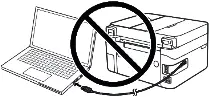 If you see the message ‘Found New Hardware’ on the screen, click Cancel and disconnect the USB cable. Then proceed to install the software. A common mistake when installing a driver is that you first connect the device to your computer using a USB cable and then install the driver. In this case, the operating system detects the connected device and installs its own driver, which may not work correctly or not work at all. However, some other devices may work fine with the driver installed by the operating system. Therefore, if there is a driver specially created for your device, then first start installing this driver and only then connect the device to the computer.
Important information! Be sure to restart your computer after installing the printer and scanner drivers (these drivers are in the same file) and only then install the “ToolBox” software that is required to use the scanner. If you have problems installing drivers or your printer is not working properly. Read here about how to solve these problems.
Software for Windows operating systems

Download Printer and Scanner Drivers for Windows (64-bit)
Download Printer and Scanner Drivers for Windows (32-bit)
Canon imageCLASS MF3010 Printer and Scanner Drivers
Driver Version : UFR II Printer Driver – V20.95, ScanGear – V11.3
Drivers and software for operating systems Windows 11, Windows 10, Windows 8, Windows 8.1, Windows 7, Windows Vista, Windows XP (64-bit / 32-bit)
 Important Information for Users of ARM Laptops
If your laptop has an ARM processor, such as Qualcomm Snapdragon X Elite, Snapdragon X Plus, or Microsoft SQ, you may not be able to install the Canon printer driver through a USB cable in the usual way.
This happens because Canon has not released UFR II LT and CARPS drivers for Windows 11 ARM64. Therefore, these drivers cannot be installed directly on some ARM laptops.
This does not always mean that the printer or scanner cannot be used. In some cases, printing and scanning can be set up in another way. To check whether your Canon model is affected and find suitable instructions, see this guide: How to Connect a Canon MFP to an ARM Laptop Running Windows 11.
After installing the drivers, restart your computer and install the scanning software.
Tool Box Ver.4.9.1.1.mf18
Scanner software – Tool Box
File Size: 9.47 MB. File version: 4911mf18
File name: ToolBox4911mf18WinEN.exe
Settings of the ‘ToolBox’ software for the Canon scanner.
Instructions on how to scan using the “ToolBox” software (ver. 4.9.1.1.mf18) and easy settings for Canon scanner. Install the scanner driver first, and then install the “ToolBox” software. After installing the “ToolBox” software, a shortcut to this software will be created on the desktop of the computer.
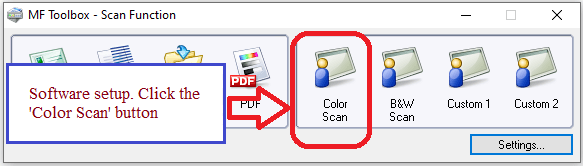 To set up the software, connect the device to a computer and click the “Color Scan” button.
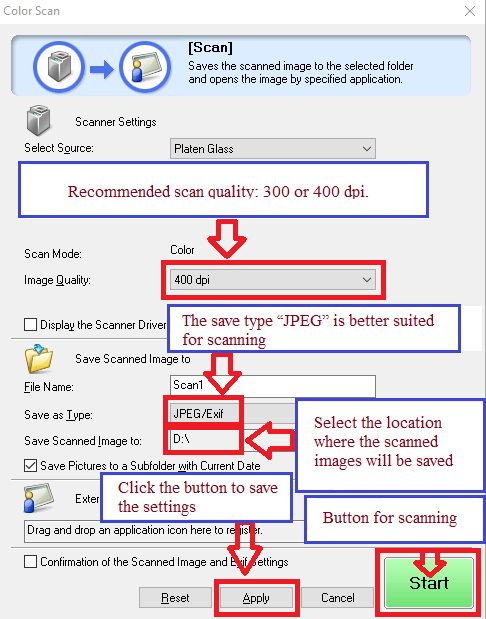 Scanning quality is recommended to be set: 300 or 400 dpi (suitable for scanning any documents and photos). The higher the quality, the longer the scan takes and the larger the file size. The save type “JPEG” is better suited for scanning. Select the location where the scanned images will be saved. Click the “Apply” button to save the software settings. No other settings are required. To scan, press the ‘Start’ button. The software allows you to scan quickly and conveniently.
Canon imageCLASS MF3010 Printer and Scanner Drivers

Software for MAC operating systems
Printer driver for operating systems: macOS 10.13.6 – macOS 14.1.2
MF Printer Driver and Utilities for Mac V10.11.11 [macOS 10.13.6 – macOS 14.1.2]
Download printer driver for MAC operating systems
File version: V10.11.11. File Size: 36.73 MB
Canon imageCLASS MF3010 Drivers
File name: mac-mf-v101111-00.dmg
The following instructions show you how to download the compressed files and decompress them. Click the link. The download will start automatically. Files are saved on your computer desktop. Double-click the file to mount the Disk Image. Double-click the mounted Disk Image. Double-click the Installer file in the folder. Installation starts automatically.
Scanner Driver and Utilities for Mac
The MF Scan Utility and MF Toolbox necessary for adding scanners are also installed. To find out which application the printer model you are using supports, refer to the Readme file.
Download scanner driver and software for Mac
File Version: V2.15.14. File Size: 87.38 MB
macOS 10.13.6 – macOS 14.1.2
The following instructions show you how to download the compressed files and decompress them. Click the link. The download will start automatically. Files are saved on your computer desktop. Double-click the file to mount the Disk Image. Double-click the mounted Disk Image. Double-click the Installer file in the folder. Installation starts automatically.
Canon imageCLASS MF3010


Many thanks from your Software
Important information! Be sure to restart your computer after installing the printer and scanner drivers (these drivers are in the same file) and only then install the “ToolBox” software that is required to use the scanner.
I have had this Canon MF3010 printer (MFP) for many years (I have reinstalled the drivers many times on Windows 7 and Windows 10). The printer is good and reliable, but there is a problem with installing the drivers.
The solution to the driver installation problem is as follows. First, start installing the drivers (they are in one file), and when the installer asks to connect the printer to the computer, connect the USB cable and turn on the printer (at this moment the printer and scanner drivers are installed). After that, обязательно restart the printer. Then install the scanner software “ToolBox” (a separate file). Just in case, restart again and the printer works.
If after correct driver installation the computer does not see the Canon MF3010, then the problem is related to the USB cable. Do not use adapters. Connect the printer directly to the computer. If the USB cable is weak, it is better to connect it to the rear USB ports of the computer. Or try a cable from another printer.
If you installed the driver before and the Canon MF3010 does not work, be sure to remove the drivers for this printer and scanner (they will interfere with the new installation).
I made a detailed instruction specifically for the Canon MF3010 about solving problems with installing and removing drivers (there is a video). Here is the link — https://drivernew.com/?p=62881