Last Updated on 12.06.2025 by DriverNew
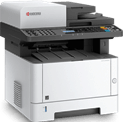 Drivers and software you need to use all printer and scanner functions: Kyocera ECOSYS M2135dn. Fixing problems that cause the scanner not to work.
For the printer you need to download and install the driver: “KX Printer Driver”, and for the scanner the driver: “TWAIN Driver” and the software: “KYOCERA Quick Scan”. These drivers and software will be enough for normal operation of the printer and scanner: Kyocera ECOSYS M2135dn.
Important: The TWAIN driver is only intended to allow your computer to recognize the connected scanner. Therefore, be sure to install the “KYOCERA Quick Scan” scanner software, with which you can scan documents and photos. These drivers and software can be downloaded from the official “KYOCERA” website or this page of the website. The files will be downloaded using the same links as the official website.

Download Printer Driver for Windows
(KX Printer Driver) File size: 229 MB
Download scanner driver and software for Windows
(KYOCERA Quick Scan / TWAIN Driver) File Size: 47 MB
Kyocera ECOSYS M2135dn: drivers and software for operating systems: Windows 11, Windows 10, Windows 8, Windows 8.1, Windows 7 (64-bit / 32-bit). These drivers and software will be enough for normal operation of the printer and scanner: Kyocera ECOSYS M2135dn. You can also download an installation disk with all drivers and software.
Download installation disk with drivers and software
(ISO file) File size: 1.6 GB
This is the disk image (ISO file) with the software included with the printer. Before starting the installation, extract the files from the archive and connect the printer to your computer. Use the file named “Setup.exe” to install the printer driver and scanner driver. Follow the instructions on the monitor screen. This software is for the following printers: ECOSYS P2230dn, P2235dn, P2235dw, P2040dn, P2040dw, M2135dn, M2635dn, M2635dw, M2040dn, M2540dw, M2640idw, M2735dw, M2540dn.
Fix problems that are causing the scanner not to work.
If you have installed the scanner driver but the scanner does not work, follow the steps below. Launch the “TWAIN Driver Setting” software and add your device (printer, scanner) to the software. In the “Name” column write any name for your printer, and in the ‘Model’ column select your printer model from the drop-down list and click “OK”. The scanner will then work and you will be able to use the “KYOCERA Quick Scan” software to scan documents and photos.
This video shows you how to fix the problems that are causing your scanner to not work.
Scanner software settings: “KYOCERA Quick Scan”.
After installing the “KYOCERA Quick Scan” software, shortcuts for the software will be created on your computer’s desktop.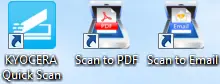 If you want to scan a document quickly, simply put the document into the scanner and double-click the “Scan to PDF” shortcut on the desktop. The scanned image is saved in the default folder. To change the folder for saving scanned images, then double-click the “KYOCERA Quick Scan” shortcut icon. For scanning photos, it is best to use the “JPEG” or “PNG” format. For scanning documents, it is better to use the “PDF” format. The quality of scanned documents is good, and there is no need to change any other settings of this program.
Software language: English, Japanese, Chinese, Korean, French, Italian, German, Spanish, Portuguese, Russian, Czech, Polish, Dutch, Danish, Norwegian, Finnish, Greek, Hungarian, Portuguese, Swedish, Turkish, Hebrew, Romanian, Arabic, Catalan, Vietnamese, Thai. This software is for scanners: ECOSYS M2040dn; ECOSYS M2135dn; ECOSYS M2235dn; ECOSYS M2540dn; ECOSYS M2540dw; ECOSYS M2635dn; ECOSYS M2635dw; ECOSYS M2640idw; ECOSYS M2735dn; ECOSYS M2735dw; ECOSYS M2835dw; ECOSYS M5021cdn; ECOSYS M5520cdn; ECOSYS M5520cdw; ECOSYS M5521cdn; ECOSYS M5521cdw; ECOSYS M5525cdn; ECOSYS M5526cdn; ECOSYS M5526cdw.
You can scan using free Windows tools or the NAPS2 app.
Windows Scan is a free app for Windows 11, Windows 10, and Windows 8.1 that you can download from the Microsoft Store and use to scan documents and pictures.
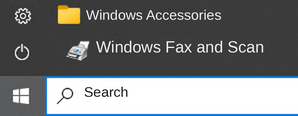
Windows Fax and Scan is a built-in app for Windows 10, 8.1, 8, and 7. To open it, click Start or use Windows Search. In the search box, type: Windows Fax and Scan.
NAPS2 is a free scanning app that lets you save files as PDF, TIFF, JPEG, or PNG and offers more flexible settings.
To learn more about these apps, which one to choose, and how to use them, read this article.
Important: These apps require a scanner driver. If a driver from the manufacturer is available for your model, it is best to install it first. If Windows has already installed a driver automatically and scanning works properly, reinstalling it is usually not necessary.
Download and install the driver Kyocera ECOSYS M2135dn. This is a driver that will provide full functionality for your selected model.



Leave a Reply