Last Updated on 21.11.2024 by DriverNew
 Drivers and Software for Operating Systems: Windows 11, Windows 10, Windows 8, Windows 8.1, Windows 7 Vista XP / Mac OS / Linux / Android
Printer Model: Pantum CM2200FDW
Drivers for Pantum CM2200FDW printer and scanner. Several files are available for download on the official Pantum website for this model, and it is not always clear which one you should choose. This article provides links to verified installation files from the official Pantum website that contain the necessary drivers and software for the full operation of the device and usually do not cause installation problems. The article also includes instructions for the proper installation of the software for the Pantum CM2200FDW printer and scanner. If you have difficulties installing drivers or if the printer and scanner do not work properly after installation, read here about ways to solve such problems.
| Driver (Version) | Operating system | Download Driver |
| Pantum CP2200 CM2200 Windows-Driver V1.0.7z | Windows 11, Windows 10, Windows 8, Windows 8.1, Windows 7, Windows Vista, Windows XP (64-bit / 32-bit) |  Download driver for Windows Download driver for Windows |
| Pantum CP2200 CM2200 Linux Driver V.1.0.0.zip | Linux Ubuntu 12.04 / 14.04 / 16.04 / 18.04 / 20.04 | Download driver for Linux |
Installing drivers and software for printer and scanner: Pantum CM2200FDW. Many users have a question: at what point should they connect the printer to the computer – before installing the drivers or after. Answer: The printer manufacturer Pantum recommends first connecting the printer to your computer and then proceeding with installing drivers. Other printer manufacturers recommend installing the driver first and then connecting the printer to your computer, so that the operating system does not install its own driver when it detects a connected printer. Pantum printers do not have problems with this. Therefore, the Pantum printer can be connected to the computer before installing the drivers.

The User’s Guide contains information about setting up and using the device. Pantum CM2200FDW
 Windows driver installation software provides two installing methods: one-click installation and manual installation. We recommend one-click installation, which can help to install driver automatically in a faster and more convenient way. If you have any difficulty in using one-click installation, please try manual installation. Click on the “One-click installation” button to enter installation process if your software has searched only one printer. The process may need some time, and the duration is related to your computer configuration.
Connect the printer to your computer and start installing the software.
Follow the instructions on the computer screen during the software installation process. The installation of this software is simple, convenient and hassle-free. This software is included with the device and is designed to enable you to use all the functions of the device.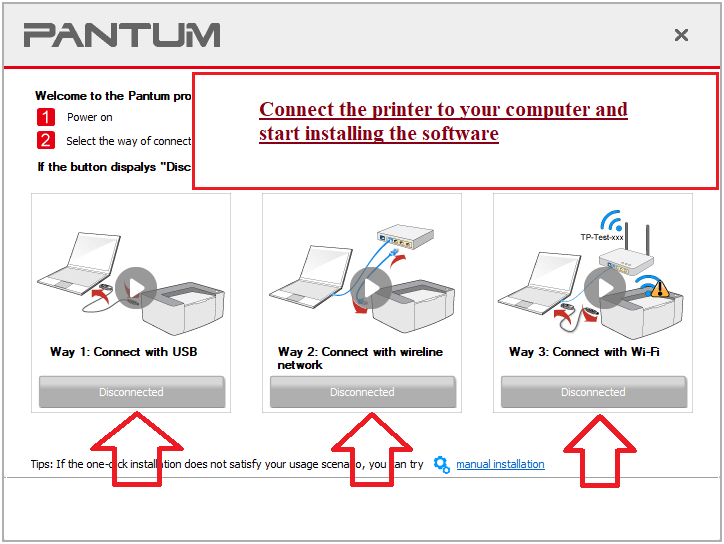 If the printer is multifunctional and can act as a scanner, then after installing the software, a shortcut to this software will be created on the desktop of the computer.
 Click on this software shortcut to set up your scanner and scan documents.
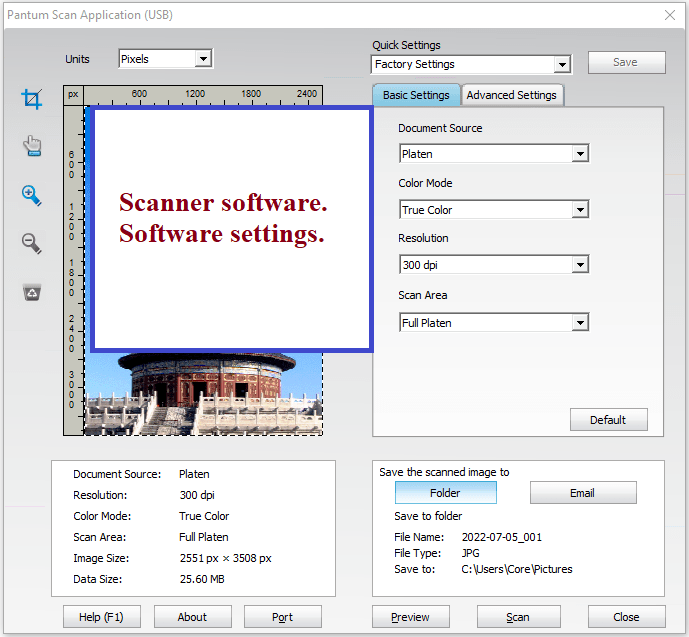 Pantum CM2200FDW Driver and Software



Leave a Reply