Last Updated on 09.09.2026 by DriverNew
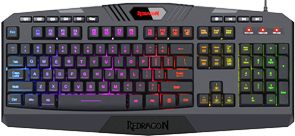 The wired Redragon K503 keyboard does not require a separate driver for normal operation in Windows. After it is connected to a USB port, the system automatically detects the keyboard as a standard HID device. The main RGB backlighting modes, brightness, effect speed, and Windows key lock are configured directly from the keyboard using key combinations with the FN key.
Important: these instructions are intended for the wired Redragon K503 Harpe. Redragon offers other keyboards with similar model designations, including the K503A Harpe Pro and wireless versions from the Harpe Wireless / K503-KS family. These are separate versions and may differ in features, key combinations, connection methods, and software support. Before using these instructions, check the exact model designation on the label on the bottom of the keyboard, on the packaging, or in the user manual.
The key combinations and software recommendations below apply specifically to the wired Redragon K503 Harpe. For K503A, K503-KS, Harpe Wireless, and other versions, use the manual intended for the corresponding model.
Do you need to install software for the Redragon K503?
No separate software is required for typing, gaming, multimedia functions, or using the backlighting modes provided for the K503. The keyboard works on a Plug & Play basis and uses standard Windows drivers.
The official Redragon downloads page includes a separate entry for the Redragon K503 Gaming Keyboard. However, the following file was downloaded from that entry:
Redragon_K503_GAMING_KEYBOARD_setup_1.0.4.1.exe
An inspection of this installer showed that its internal information does not match the K503 name. The file contains:
- ProductName: Redragon S101P-KS GAMING KEYBOARD;
- FileDescription: Redragon S101P-KS GAMING KEYBOARD Setup.
Therefore, installing the tested version 1.0.4.1 for the wired Redragon K503 is not recommended. If the keyboard is not detected after launching this software and the program reports that the device is not connected, there is no need to search for additional S101P-KS drivers or install software intended for other Redragon models.
This warning applies specifically to the tested installer version 1.0.4.1. If the manufacturer later replaces the file on the K503 page, the name and version of the new installer should be checked separately.
Connecting the Redragon K503 in Windows 11
- Connect the Redragon K503 USB cable directly to an available USB port on the computer.
- Wait a few seconds while Windows detects the new device.
- Check the letter keys, numeric keypad, and backlighting.
There is no need to download and install a separate keyboard driver. If the K503 works normally, do not manually update its driver through Device Manager and do not install universal Redragon software intended for other models.
Connecting the Redragon K503 in Windows 10
- Connect the keyboard to an available USB port on the computer.
- Wait while Windows automatically detects the device.
- Check text input and backlighting.
The Redragon K503 does not require an additional driver for normal operation.
If the S101P-KS software is already installed
If you downloaded the file for the K503 from the Redragon website but, after installation, received the Redragon S101P-KS GAMING KEYBOARD software and your keyboard is not detected in it, you can uninstall the software.
If the keyboard itself types normally and responds to FN key combinations, you do not need to remove the device in Device Manager. First, uninstall only the incompatible software.
Uninstalling the software in Windows 11
- Open Settings → Apps → Installed apps.
- Find the Redragon program with S101P-KS in its name.
- Open the program menu and select Uninstall.
- Complete the uninstallation.
- Restart Windows.
Uninstalling the software in Windows 10
- Open Settings → Apps → Apps & features.
- Find the Redragon program with S101P-KS in its name.
- Select it and click Uninstall.
- Complete the uninstallation.
- Restart Windows.
If the keyboard does not work correctly after uninstalling the software
If the K503 does not respond to keystrokes, disconnects, or is detected incorrectly after restarting, first perform a simple check:
- Disconnect the keyboard from the computer.
- Wait a few seconds.
- Connect it to a different USB port.
- If you are using a USB hub, docking station, or extension cable, temporarily connect the keyboard directly to a USB port on the computer.
If this does not help, you can force Windows to detect the keyboard again.
Redetecting the keyboard in Device Manager
- Right-click the Start button and select Device Manager.
- Expand the Keyboards section.
- The Redragon K503 may appear as a standard HID Keyboard Device or under a similar system name.
- If there are several identical HID keyboards in this section, do not remove all of them. Disconnect the K503 from the USB port and see which entry disappears. Then reconnect the keyboard and make sure that the same entry reappears.
- Right-click the identified device and select Uninstall device.
- After removing the device, disconnect the K503 from the USB port for a few seconds.
- Connect the keyboard again.
Windows will detect the device again and load the standard system keyboard drivers.
Controlling the Redragon K503 RGB backlighting
The main RGB backlighting settings are controlled directly from the keyboard. Hold down FN and press the indicated key.
| Key combination | Function |
|---|---|
| FN + DEL | Dynamic neon mode with red, blue, and green colors. |
| FN + INS | Spectrum mode with a sequential change of seven colors. |
| FN + END | Turns Breathing mode on or off. |
| FN + HOME | Static backlighting in one of seven colors. Repeat the combination to select a different color. |
| FN + PGUP | Static mode with one of three color sequences: red-blue-green, green-red-blue, or blue-green-red. |
| FN + PGDN | Turns the backlighting on or off. |
| FN + ↑ | Increases backlight brightness. |
| FN + ↓ | Decreases backlight brightness. |
| FN + → | Increases the speed of the dynamic effect. |
| FN + ← | Decreases the speed of the dynamic effect. |
Speed adjustment applies to dynamic modes. In a static mode, pressing FN + ← or FN + → may not produce a noticeable result.
How to turn the backlighting off or on
Press FN + PGDN. This combination turns off the backlighting. Press it again to turn the backlighting back on.
If the backlighting is on but appears too dim, press FN + ↑ several times.
How to change the backlight color
For continuous lighting in a single color, press FN + HOME repeatedly. The available colors cycle in sequence.
For automatic cycling through seven colors, use FN + INS. For another multicolor static option, use FN + PGUP.
How to change the effect speed
In a dynamic mode, use:
- FN + → — increase the speed;
- FN + ← — decrease the speed.
Windows key lock
While gaming, the Windows key can be locked so that accidentally pressing it does not open the Start menu.
Press FN + WIN. Press the same combination again to unlock the key.
If the Windows key unexpectedly stops working, first press FN + WIN. Gaming mode may have been enabled accidentally.
Redragon K503 multimedia keys
The additional functions of the F1–F12 keys are accessed using FN.
| Key combination | Function |
|---|---|
| FN + F1 | Open the media player. |
| FN + F2 | Decrease the volume. |
| FN + F3 | Increase the volume. |
| FN + F4 | Mute or unmute the sound. |
| FN + F5 | Stop playback. |
| FN + F6 | Previous track. |
| FN + F7 | Play or pause. |
| FN + F8 | Next track. |
| FN + F9 | Open the email app. |
| FN + F10 | Open the home page in the browser. |
| FN + F11 | Open This PC or File Explorer. |
| FN + F12 | Open Search. |
The operation of some multimedia commands depends on the apps set as defaults in Windows. For example, the email command may not open a program if no email app is assigned in the system.
Can you configure macros and remap keys?
The instructions for the wired Redragon K503 do not provide a procedure for recording hardware macros or programming standard keys through proprietary software.
If you need to remap keys in Windows, this can be done at the operating system level. One option is Microsoft PowerToys Keyboard Manager. It allows you to change the assignment of individual keys and keyboard shortcuts.
For more advanced automation, you can use AutoHotkey. Such macros are executed by Windows and are not stored in the keyboard’s memory.
The FN key is handled by the keyboard itself, so standard Windows key-remapping programs generally cannot use it as a separate programmable key.
When using macros in games, you should take into account the rules of the specific game and the protection system being used.
If the Redragon K503 backlighting does not work
- Press FN + PGDN to check whether the backlighting has been turned off.
- Press FN + ↑ several times to increase the brightness.
- Switch the mode, for example by using FN + HOME or FN + INS.
- Disconnect the keyboard from the USB port and reconnect it.
- Try a different USB port on the computer.
- If you are using a USB hub or extension cable, connect the K503 directly to the computer.
You do not need to install the S101P-KS software or software intended for another Redragon model to enable the standard K503 backlighting.
If Windows does not detect the keyboard
If the Redragon K503 does not respond to any keystrokes:
- Try a different USB port.
- Restart the computer.
- Test the keyboard on another computer, if possible.
- If the keyboard works on another computer, redetect the device through Device Manager in Windows.
- If the keyboard does not work on another computer either, the problem may be related to the USB cable or the keyboard itself.
If the Windows key does not work
First press FN + WIN. The K503 includes a Windows key lock for gaming, so the key may have been disabled accidentally.
Important points about K503 software
- The wired Redragon K503 does not require a separate driver for normal operation.
- The backlighting and its main settings are controlled using combinations with the FN key.
- The tested file
Redragon_K503_GAMING_KEYBOARD_setup_1.0.4.1.execontains the internal designation Redragon S101P-KS GAMING KEYBOARD. - If this software does not recognize the K503, it should be uninstalled rather than installing additional drivers intended for other models.
- If the keyboard works normally after the software is uninstalled, there is no need to remove the HID device through Device Manager.
- These instructions apply to the wired K503 Harpe. For the K503A Harpe Pro, Harpe Wireless / K503-KS, and other versions, refer to the manual for your specific model.



Instead of a driver for Redragon K503, you give a driver for K533, which is not suitable. The same driver is on the official Redragon website. The keyboard features are not used, except for changing the backlight.
Вместо драйвера для Redragon K503 даете драйвер для К533, который не подходит. Такой же драйвер на оффициальном сайте Redragon. Возможности клавиатуры не используются, кроме смены подсветки.
The software won’t detect the device for me. I noted the drivers are for K553 and this keyboard is K503. I suppose you are aware but just to discard a possible reason it doesn’t work
Hello. For the K553 and K503 models, one driver is used: “K553”. Especially for the K503 driver is missing. Perhaps you have a problem not with software.
Same here for me. The driver doesn’t see the device. Even the manufactured withdrew the series from Downloads section (K553 still exists there). Could be a problem with a whole series.
The same happens to me. It does not recognize my K503 keyboard. It is probably not the correct driver. We are already several with the same problem.
same problem here, for k503 not recognize 🙁
Same here! any one find a solution ??????
Same f. problem
Same here! any one find a solution ??????Please……
mine is also not working. Uninstalling.