Contact DriverNew.com — Get Free Help with Drivers and Software
If you are having trouble installing or using drivers and software for your printer, scanner, monitor, or other computer devices, our team can help. We provide clear and simple instructions to solve common problems that are often not covered on the manufacturer’s website or in the user manual.
DriverNew.com does not create or distribute its own software — we only provide links to original drivers and software from official manufacturer websites, ensuring you get safe and compatible files. We can also help you choose the correct driver when several versions are available, install older drivers on newer systems, or fix issues after system updates.
Please describe your issue and include your device model and operating system version (for example, Windows 11, Windows 10, etc.). We will reply as soon as possible and help you get your device working again — completely free of charge.
My ET-2750 printer only prints strange characters. I tried installing the driver again, but the result is the same. I don’t know what to do.
If incorrect characters appear in your prints, try these solutions before printing again:
Make sure all cables are securely connected at both ends.
If your device is connected to a USB hub, connect it directly to your computer instead.
On Windows, delete all print jobs from the Windows spooler:
Windows 10: Click and select (Settings) Devices Printers and Scanners. Select your product name and select Manage Open Print Queue. Right-click the blocked print job, click Cancel, and then click Yes.
Windows 8.x: Go to the Apps screen and select Control Panel Hardware and Sound Devices and Printers. Right-click your device name, select View Print Jobs, and select your device name again if necessary. Right-click the canceled print job, click Cancel, and then click Yes.
Windows 7: Click and select Devices and Printers. Right-click your device name, select View Print Jobs, and select your device name again if necessary. Right-click the paused print job, click Cancel, and then click Yes.
Windows Vista: Click and select Control Panel. Under Hardware and Sound, click Printers, right-click your product name, and select Open. Right-click the canceled print job, click Cancel, and then click Yes.
If your computer was put to sleep the last time you printed, the next print job after it exits sleep may contain garbled characters. Print your document again.
Translation of text: Hello! I want to connect the printer Canon pixma MG3540, I download the driver and when installing the program asks to connect the printer to the computer, connected, but the program does not see the printer. I have Windows 11. What can I do?
The official website for the Canon PIXMA MG3540 printer has several different driver and software files. If you downloaded a file named: “MG3500 series Full Driver & Software Package (Windows 10/10 x64/8.1/8.1 x64/8/8 x64/7/7 x64/Vista/Vista64/XP)” and you have problems installing these drivers, then it is better to download and install another driver with the title: “MG3500 series MP Drivers Ver…”. There is nothing extra in this file, but only drivers and scanner software: “IJ Scan Utility”. There are no problems with the installation of this driver. With this software you will be able to use all the functions of the printer.
You can download this file from Canon’s official website or this website. The file will be downloaded from the same link as the official website.
If you have previously installed drivers but the printer or scanner does not work, then completely uninstall those drivers and other software that was installed with those drivers. After that, be sure to restart your computer and install another driver. Read more about how to properly uninstall and install printer and scanner drivers here. https://drivernew.com/?p=65389
Здравствуйте! Посоветуйте, пожалуйста, старые драйверы на Laser Jet Pro MFP 4103fdn. У меня Windows 7 64 bit
https://support.hp.com/us-en/drivers/hp-laserjet-pro-mfp-4101-4104dw-fdn-fdw-printer-series/model/38347997?sku=2Z628A
Help find drivers for xerox workcentre 3315 for windows 10 so that you can scan
Download the drivers from this website page https://drivernew.com/?p=1379 (The drivers for the scanner were created only for the Windows 7 operating system, but these drivers are compatible with the Windows 10, Windows 11 operating system)
How to scan using the software built into the Windows operating system.
You can use “Windows Fax and Scan” software to scan documents and photos. This software is included in the operating systems: Windows 11, Windows 10, Windows 8, Windows 7, Windows Vista. You can access this software through the Start menu in every version of the Windows operating system. You can read more about this here.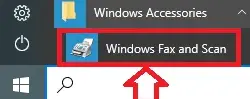
To use this software, be sure to install the scanner driver.
Thank you. The driver is installed and works well.
Здравствуйте, помогите решить проблему. ПО Astra Linux Special Edition, Архитектура: x86, 64-разрядная. Не могу найти ПО (драйвер) для MF752Cdw.
Спасибо.
Здравствуйте,помогите найти драйвер на Windows 11 ,для принтера panasonic kx-mb 1500.
Hello. I have samsung ml 1210. I need drivers. I can’t find it. Help me. Windows 11
Use to install a universal printer printer – https://ftp.hp.com/pub/softlib/software13/printers/SS/SL-M3370FD/SamsungUniversalPrintDriver3_V3.00.16.0101.01.exe
Hello! I want to connect a Canon Pixma iP7240 printer. I downloaded the driver, and during installation, the program asks me to connect the printer to the computer, but it doesn’t detect the printer. I have Windows 11. What can I do?
🛠️ How to Fix: Canon PIXMA iP7240 Setup Stuck on “Connect the Printer” Screen
A situation where the official Canon installer asks you to connect the printer via USB but fails to detect it is very common in Windows 11. The solution to this issue depends entirely on the type of processor inside your computer or laptop.
Option A: If You Have a Modern ARM-Based Laptop
This problem **applies to the entire lineup of laptops running on ARM processors** (such as Qualcomm Snapdragon X Elite, Snapdragon X Plus, Microsoft SQ, etc.). On these devices, the official Canon USB driver for the iP7240 model will not work due to Windows 11 ARM core security restrictions that block legacy x86/x64 drivers.
Step-by-Step Solution via Wi-Fi (No USB Cable Needed):
Option B: If You Have a Standard Computer or Laptop (Intel / AMD)
If your PC runs on a traditional Intel or AMD processor, the issue is caused by a USB communication glitch or a Windows 11 port conflict. The official driver is fully compatible, but the system needs manual help to recognize the connected hardware.
Step-by-Step Solution to Fix the USB Connection Glitch:
Pro Tip: If you are on a standard PC (Intel/AMD) and continue to experience frustrating USB connection errors, you can completely skip the cable method. Simply connect your printer to your router using the Wi-Fi method shown in Step 1 of Option A. This bypasses Windows 11 USB port issues entirely.
Panny KX-MB271 in W10
The driver in your site didn’t even install Multi-Function Station, let along the drovers for the Scan function that v122 didn’t either.
Is this v123 suppose to install Multi Function Station also?
Здравствуйте. Не работает сканер на Canon i-SENSYS MF4410, Windows 11, 64-разрядная версия Windows. Печатает документы и копирует хорошо. Помогите пожалуйста.
Canon i-SENSYS MF4410 Как сканировать и устранять проблемы с установкой и использованием программного обеспечения сканера (статья на русском языке) – https://akademinfo.com/?p=62752